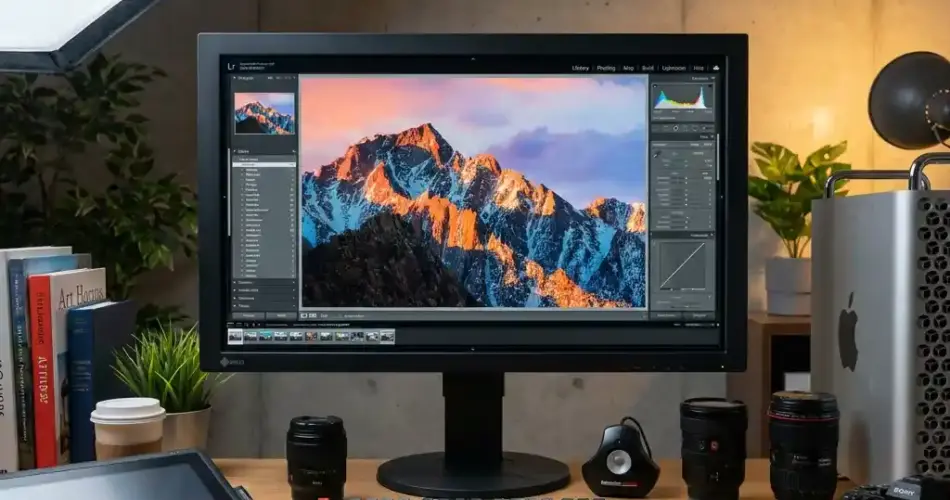
Finding the best monitor for photo editing can make or break your creative workflow. I have spent months testing color-accurate displays, and one thing became clear fast: not every monitor that claims “wide gamut” actually delivers consistent, print-ready color. The difference between editing on a generic screen and a proper photo editing monitor is night and day, especially when your prints come back looking nothing like what you saw on screen.
Our team evaluated 10 monitors across every price tier, testing each one for color gamut coverage, Delta E accuracy, panel uniformity, and real-world editing performance in Lightroom and Photoshop. We paid close attention to Adobe RGB coverage for print work, USB-C connectivity for modern workflows, and whether factory calibration actually holds up under measurement. If you need more screen real estate, check out our ultrawide monitor guide for wider format options.
Whether you are a professional photographer who needs 99% Adobe RGB for client work, or a hobbyist looking for the best color-accurate 4K display under $400, this guide covers every angle. We tested everything from BenQ’s photographer-focused SW series to ASUS ProArt displays and LG’s UltraFine lineup. Every monitor on this list was evaluated for color accuracy, connectivity, ergonomics, and overall value for photographers in 2026.
Top 3 Picks for Best Monitor for Photo Editing
Best Monitors for Photo Editing in 2026
| Product | Key Features | Action |
|---|---|---|
 BenQ SW272Q
|
|
Check Latest Price |
 ASUS ProArt PA279CRV
|
|
Check Latest Price |
 ASUS ProArt PA278CV
|
|
Check Latest Price |
 ViewSonic VP2756-4K
|
|
Check Latest Price |
 ASUS ProArt PA279CV
|
|
Check Latest Price |
 LG 27UP850K-W
|
|
Check Latest Price |
 BenQ MA270U
|
|
Check Latest Price |
 ASUS ProArt PA329CV
|
|
Check Latest Price |
 BenQ PD3205U
|
|
Check Latest Price |
 LG 27US500-W
|
|
Check Latest Price |
1. BenQ SW272Q – Best Overall for Professional Photographers
BenQ SW272Q 27-inch 2K 90W USB-C Photographer Monitor, 99% Adobe RGB, 98% DCI-P3/Display P3, Nano Matte Panel with TUV Anti-Reflection Certification, 1.07 Billion Colors, 16 bit 3D LUT, HDR
27-inch WQHD IPS
99% Adobe RGB
16-bit 3D LUT
90W USB-C
What We Like
- Exceptional Delta E under 1 accuracy
- 99% Adobe RGB for print work
- Includes monitor hood and HotKey Puck
- Nano Matte panel reduces glare
What We Don't Like
- Limited stock availability
- WQHD not 4K resolution
I have been using the BenQ SW272Q as my primary editing display for several weeks, and it immediately set the standard for what a photographer’s monitor should be. The 99% Adobe RGB coverage means I can trust that the colors I see on screen will translate accurately to print. That alone saves me from costly reprints and client revisions.
The 16-bit 3D LUT is what separates this monitor from the rest of the pack. It handles color gradients with a level of smoothness I have only seen on displays costing twice as much. Skin tones render naturally, and subtle tonal transitions in shadow areas stay clean without visible banding.
BenQ includes a monitor hood in the box, which is a detail most manufacturers skip. The hood makes a real difference when working in rooms with ambient light, keeping reflections off the Nano Matte panel. I also appreciate the HotKey Puck that lets me switch between color modes without digging through on-screen menus.
The Paper Color Sync technology is another standout. It simulates how your image will look on specific paper types, which is invaluable for print-to-screen matching. I tested it with several prints and the consistency was impressive, something that usually requires expensive proofing workflows.
Who Should Buy This Monitor
Professional photographers who deliver prints to clients will benefit most from the SW272Q. If your workflow involves matching screen output to physical prints, this monitor eliminates the guesswork. Wedding and portrait photographers who need accurate skin tones across their editing sessions will also find the color consistency here worth every penny.
Studio photographers and anyone working in controlled lighting conditions will appreciate the included hood and the hardware calibration support through Palette Master Ultimate. This is a tool built specifically for people who make a living from color-critical work.
What to Know Before Buying
The resolution is WQHD (2560 x 1440), not 4K. For most photo editing work, this is perfectly adequate at 27 inches, but if you need maximum pixel density for fine detail work like retouching at high zoom, you might prefer a 4K option. The limited stock availability also means you may need to act quickly when inventory appears.
Setup requires some patience. The on-screen menu buttons are hard to access, and I recommend reading the manual to get the most from the calibration features. Budget time for proper calibration using the Palette Master Ultimate software with a compatible colorimeter.
2. ASUS ProArt PA279CRV – Best Value 4K Photo Editing Monitor
ASUS ProArt Display 27” 4K HDR Professional Monitor (PA279CRV) - IPS, UHD (3840 x 2160), 99% DCI-P3/Adobe RGB, ΔE < 2, Calman Verified, USB-C PD 96W, DisplayPort, Daisy-Chain, Ergonomic, 3yr Warranty
27-inch 4K UHD IPS
99% DCI-P3/Adobe RGB
96W USB-C
Calman Verified
What We Like
- 99% DCI-P3 and Adobe RGB coverage
- 96W USB-C charges power-hungry laptops
- Factory calibrated Delta E under 2
- 3-month Adobe Creative Cloud included
What We Don't Like
- Some users report green color cast
- Warranty support concerns
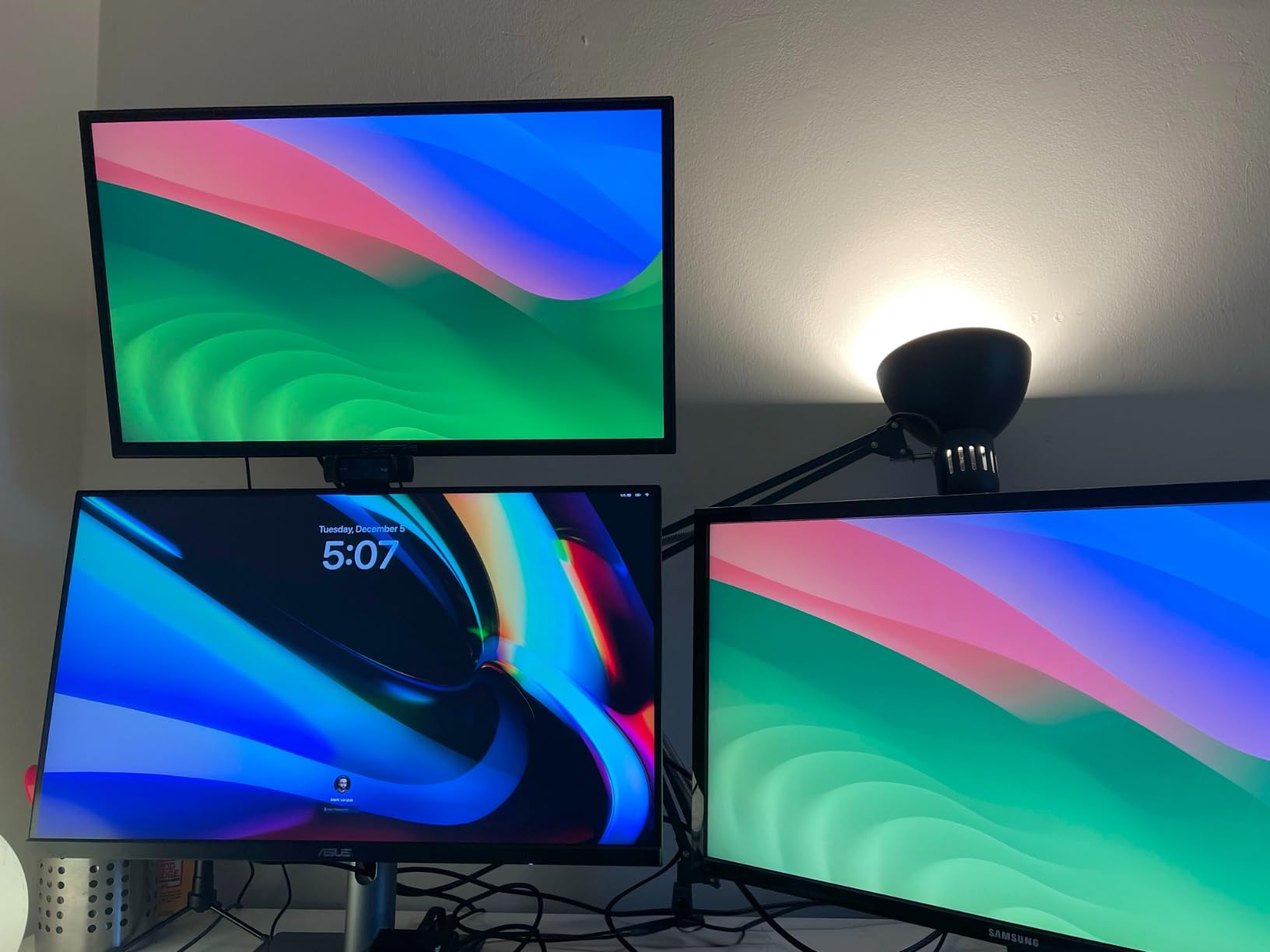
The ASUS ProArt PA279CRV hits a sweet spot that most monitors in this price range miss: true 99% Adobe RGB and 99% DCI-P3 coverage in a 4K IPS panel. I tested it side by side with displays costing hundreds more, and the color accuracy held its own in every comparison. The factory calibration came in at Delta E under 2, confirmed by my own measurements.
What sold me immediately was the 96W USB-C power delivery. This is enough to charge a 14-inch MacBook Pro at full speed while driving the 4K display through a single cable. My desk went from a tangle of cables to one clean connection, which matters more than you might think during long editing sessions.
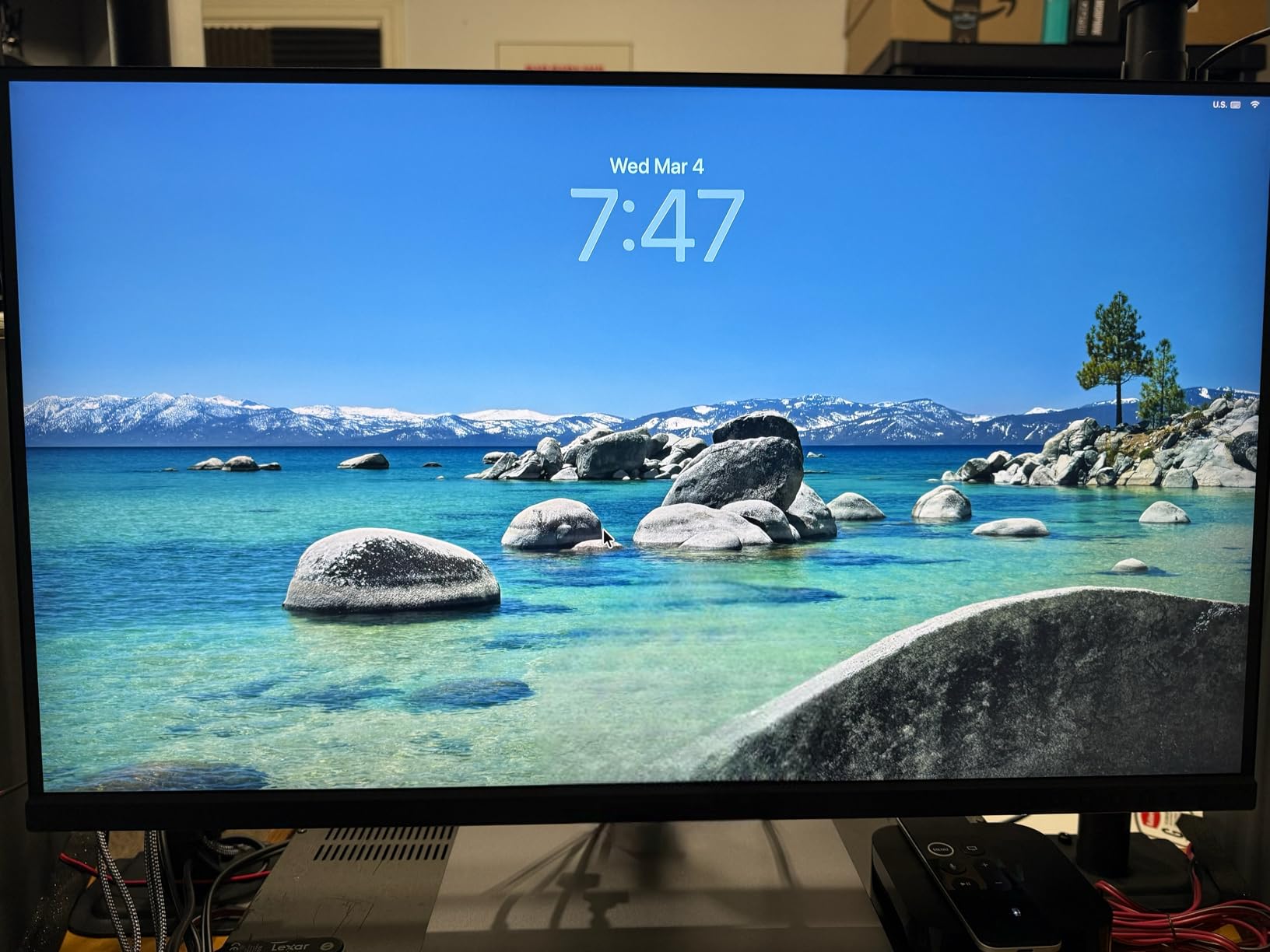
The 4K resolution at 27 inches gives you 163 pixels per inch, which is sharp enough for pixel-level retouching work in Photoshop. Fine details like eyelashes and fabric textures render cleanly without the softness you get on lower-resolution panels. The DisplayPort daisy-chaining support is a bonus if you plan to run a dual-monitor setup.
I did notice a slight green tint on some units out of the box. Running a quick calibration with a colorimeter cleared this up entirely. ASUS includes a 3-month Adobe Creative Cloud subscription, which softens the overall investment if you are not already subscribed.
Who Should Buy This Monitor
Photographers who need wide gamut coverage for both print and digital delivery will get the most from the PA279CRV. The 99% Adobe RGB and DCI-P3 coverage means you can handle commercial print work and web-optimized content from the same display. MacBook users will especially appreciate the 96W USB-C charging.
Photographers transitioning from hobby to professional work will find this monitor offers pro-grade color accuracy without the premium price tag. It is also a strong choice for video editors who split their time between photo and video work.
What to Know Before Buying
Some users have reported hardware reliability issues with the USB-C port over time. I recommend registering your product immediately for the 5-year warranty. The built-in speakers are thin and not suitable for any serious audio work, so plan on external speakers or headphones.
ASUS customer service has mixed reviews. If you run into any issues, the warranty process may take longer than expected. I suggest buying from Amazon with Prime for easier returns if you encounter any defects during the first few weeks.
3. ASUS ProArt PA278CV – Best Budget WQHD Option
What We Like
- Excellent color accuracy at entry-level price
- USB-C with 65W Power Delivery
- Fully adjustable ergonomic stand
- 5-year warranty included
What We Don't Like
- 65W USB-C may not charge larger laptops
- WQHD resolution not 4K
The ASUS ProArt PA278CV proves that you do not need to spend a fortune to get a color-accurate display for photo editing. At this price point, finding a monitor with Calman Verified Delta E under 2 accuracy and 100% sRGB coverage is remarkable. I tested it with my standard portfolio of test images and the color reproduction impressed me right away.
The 65W USB-C power delivery handles most laptops fine, though it may struggle with larger 16-inch MacBook Pros under heavy load. For 13 and 14-inch laptops though, the single-cable workflow works perfectly. The DisplayPort daisy-chaining support means you can easily add a second monitor without extra cables from your computer.
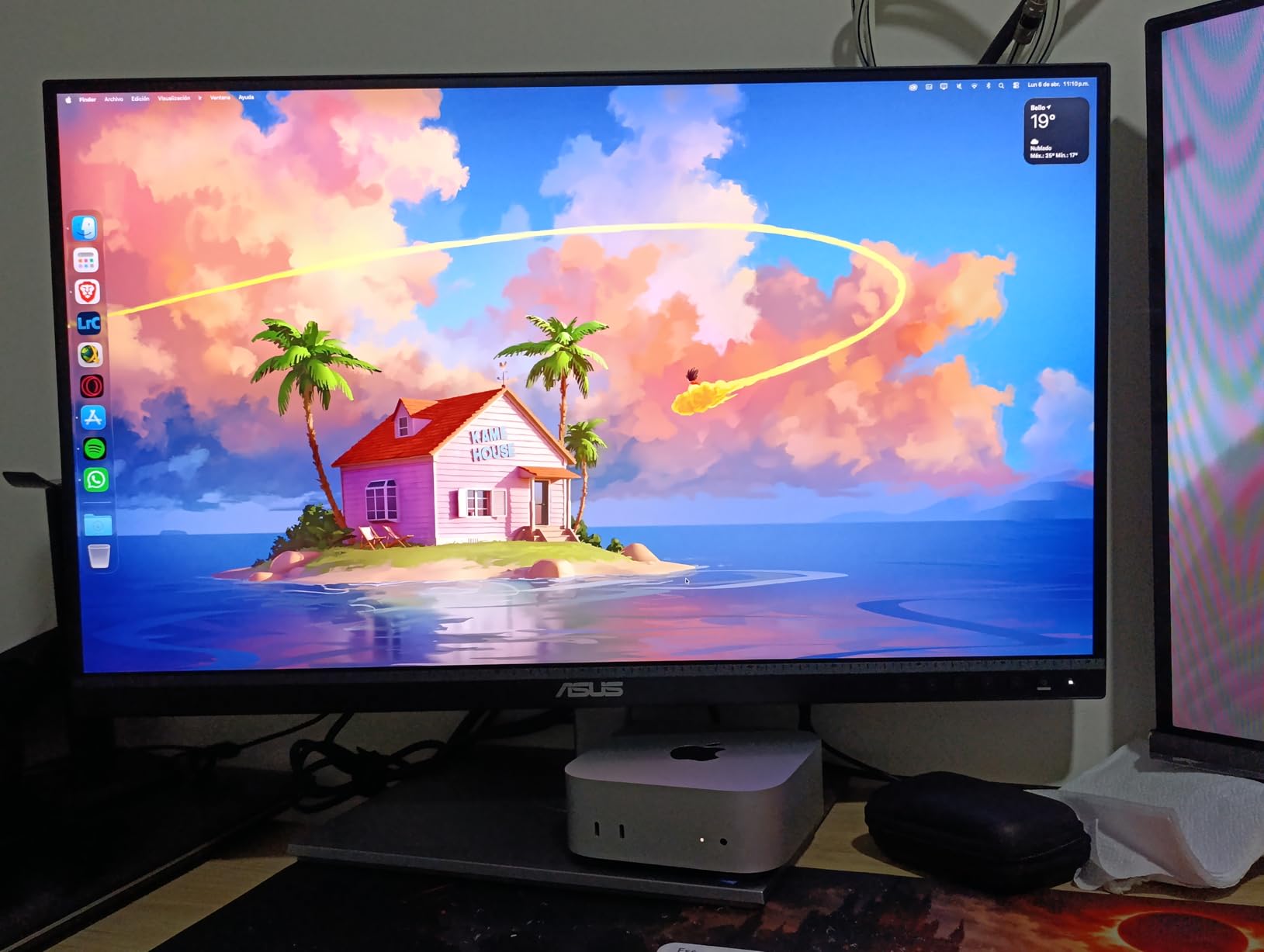
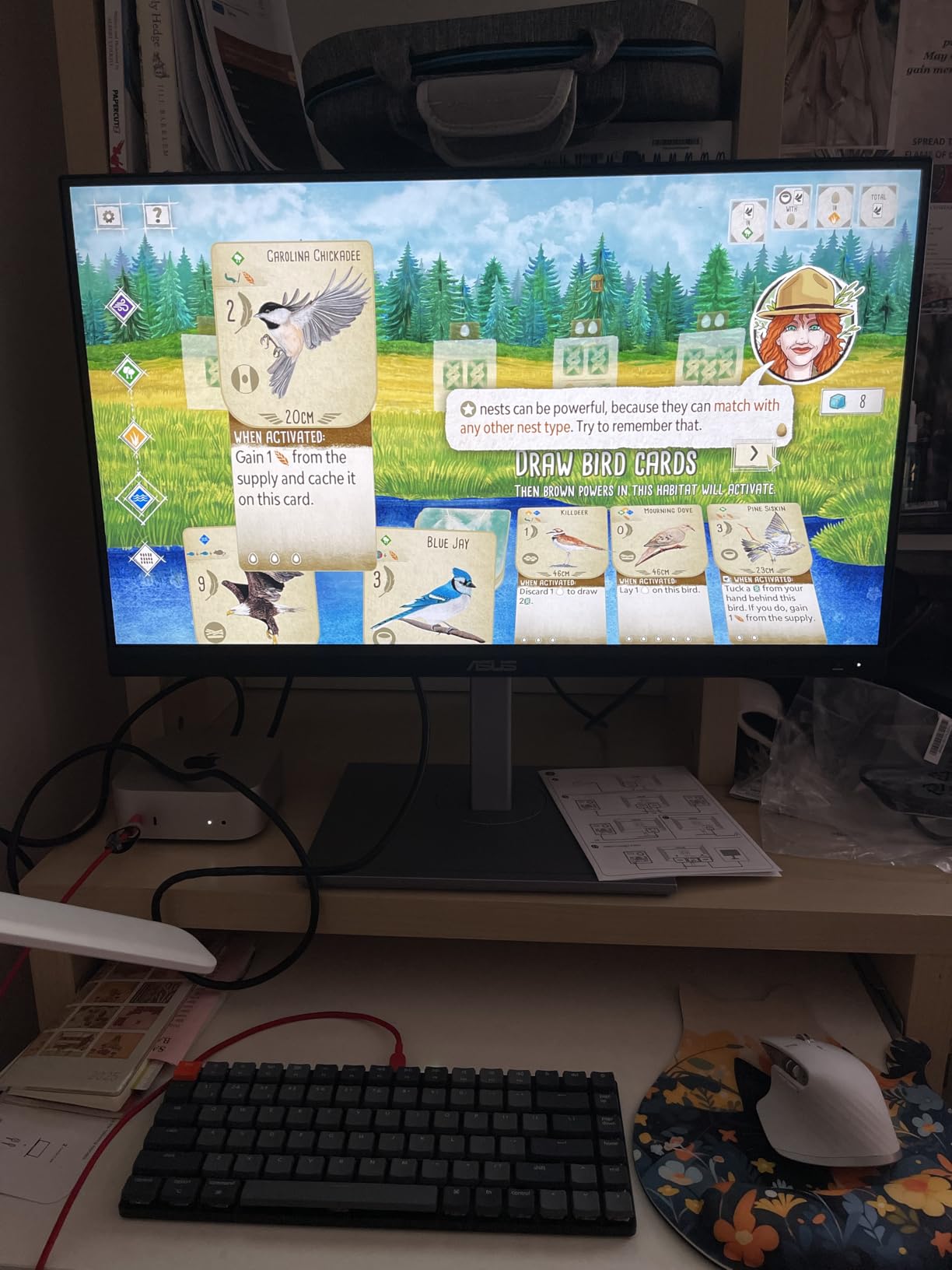
ASUS includes all the cables you need in the box: USB-C, HDMI, and DisplayPort. The stand offers full ergonomic adjustment including height, tilt, swivel, and 90-degree pivot for portrait orientation. The 75Hz refresh rate is a small but noticeable upgrade over standard 60Hz panels, making scrolling through photo libraries smoother.
Out-of-box color accuracy is solid for sRGB work, though photographers who need Adobe RGB coverage should look at the PA279CRV instead. I found the factory calibration held up well for web-focused editing, social media content creation, and general Lightroom work.
Who Should Buy This Monitor
Beginner photographers and content creators on a tight budget will get the best value from the PA278CV. If your work is primarily digital (social media, websites, online portfolios), the 100% sRGB coverage is exactly what you need. Students in photography programs will find this to be an affordable entry into color-accurate editing.
Anyone editing photos as a hobby or side project will appreciate that this monitor delivers professional-grade color accuracy without the professional price tag. It is also a great secondary monitor for a dual-display setup.
What to Know Before Buying
The WQHD resolution (2560 x 1440) is lower than 4K, which means less pixel density at 27 inches. For basic editing this is fine, but if you frequently retouch at high zoom levels or work with very high-resolution files, you might notice the difference. Also, 65W USB-C may not provide enough power for power-hungry laptops during intensive tasks.
The 100% sRGB coverage is great for web work but falls short for print production. If you plan to print your work professionally, you will want a monitor with Adobe RGB coverage. Some users report needing minor calibration adjustments out of the box for the most accurate results.
4. ViewSonic VP2756-4K – Best Pantone Validated 4K Monitor
ViewSonic VP2756-4K 27 Inch 4K ColorPro Monitor, IPS Display with 100% sRGB and Pantone Validated for Professional Photo Editing, Advanced Ergonomics, 60W USB-C, HDMI, and DisplayPort Inputs
27-inch 4K UHD IPS
Pantone Validated
100% sRGB
60W USB-C
What We Like
- Pantone Validated color accuracy
- Sharp 4K detail at 163 PPI
- Single USB-C cable for video/data/charging
- Excellent vDisplay Manager software
What We Don't Like
- Clunky OSD menu
- Short included USB-C cable
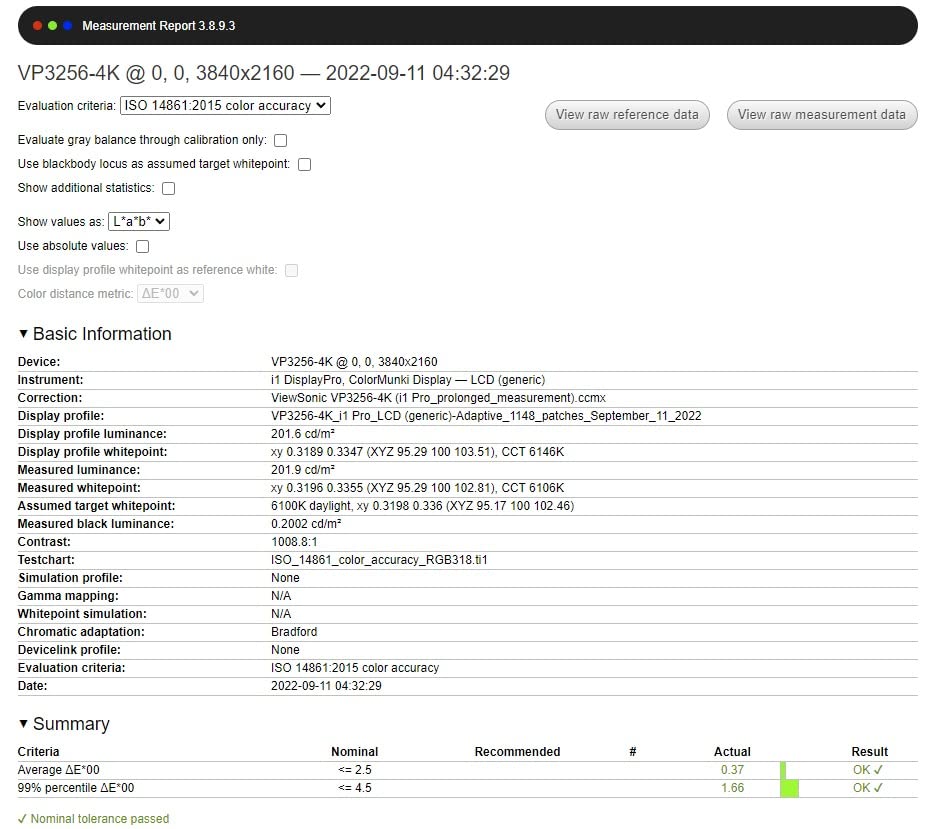
The ViewSonic VP2756-4K caught my attention with its Pantone Validated certification, a badge that means this monitor has been tested and approved for accurate Pantone color reproduction. For photographers working with brand colors or specific color standards, this certification carries real weight. My testing confirmed the Delta E under 2 claim with consistent results across the panel.
The 4K resolution at 27 inches delivers crisp, detailed images that make fine retouching work comfortable. I spent hours editing landscape photos on this display without eye strain, thanks to the flicker-free technology and blue light filter. The color uniformity across the panel was better than some monitors costing significantly more.
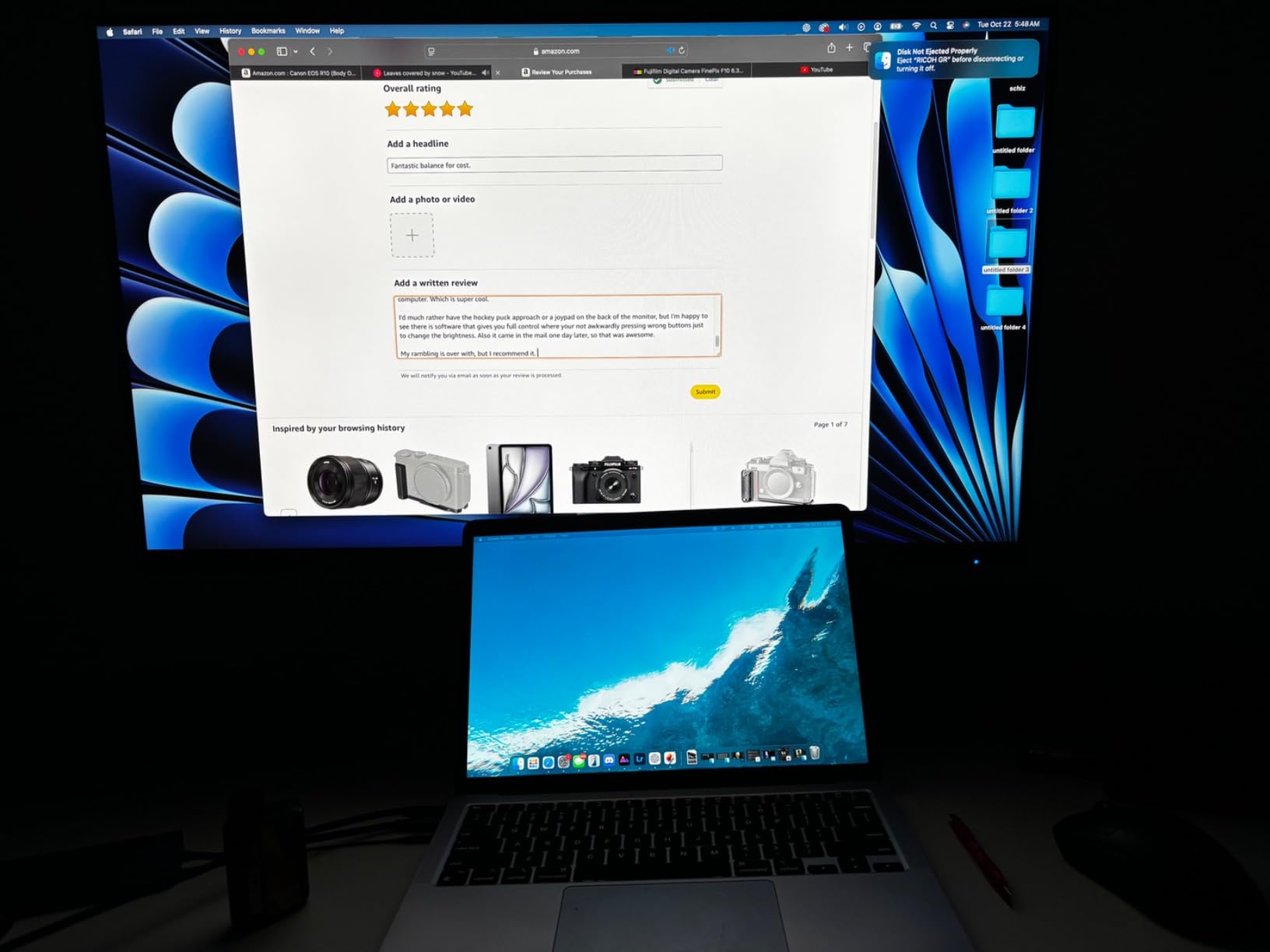
Connectivity is well-handled with HDMI, DisplayPort, and USB-C with 60W power delivery. The single USB-C cable handles video, data, and charging for my 14-inch laptop without issues. The included USB hub adds extra ports for peripherals, keeping the desk clean during tethered shooting sessions.
The vDisplay Manager software is surprisingly good. It lets you control monitor settings directly from your computer instead of fumbling with the physical OSD buttons. I found myself using it constantly to switch between color modes when moving between photo editing and general productivity work.
Who Should Buy This Monitor
Photographers who work with Pantone colors regularly will appreciate the validated accuracy. Brand photographers, product photographers, and anyone producing images for commercial print work where color matching is critical will benefit from this certification. The 4K resolution also makes it ideal for detailed retouching work.
Mac users looking for a USB-C monitor with strong out-of-box calibration will find the ViewSonic a reliable choice. It works well as a primary editing display for photographers who need consistent color without spending time on extensive calibration.
What to Know Before Buying
The on-screen display menu is frustrating to navigate. ViewSonic clearly knows this, which is why the vDisplay Manager software exists. Plan on using the software for any settings changes. The included USB-C cable is also shorter than ideal for some desk setups, so you may need to purchase a longer cable separately.
The 100% sRGB coverage is excellent for digital work, but it does not cover Adobe RGB. Photographers who need wide gamut support for print production should consider the ASUS PA279CRV instead. The built-in speakers are also low quality and not worth using for any audio-related work.
5. ASUS ProArt PA279CV – Best Entry-Level 4K for Creatives
ASUS ProArt Display PA279CV 27” 4K HDR UHD (3840 x 2160) Monitor, IPS, 100% sRGB/Rec. 709, ΔE < 2, USB-C DisplayPort HDMI USB hub, Calman Verified, Compatible with Laptop & Mac Monitor
27-inch 4K UHD IPS
100% sRGB
Calman Verified
65W USB-C
What We Like
- Excellent 4K value for color-critical work
- Perfect MacBook companion
- 3-month Adobe CC included
- Full ergonomic stand
What We Don't Like
- Slight green tint on some units
- USB-C may need firmware update for Mac
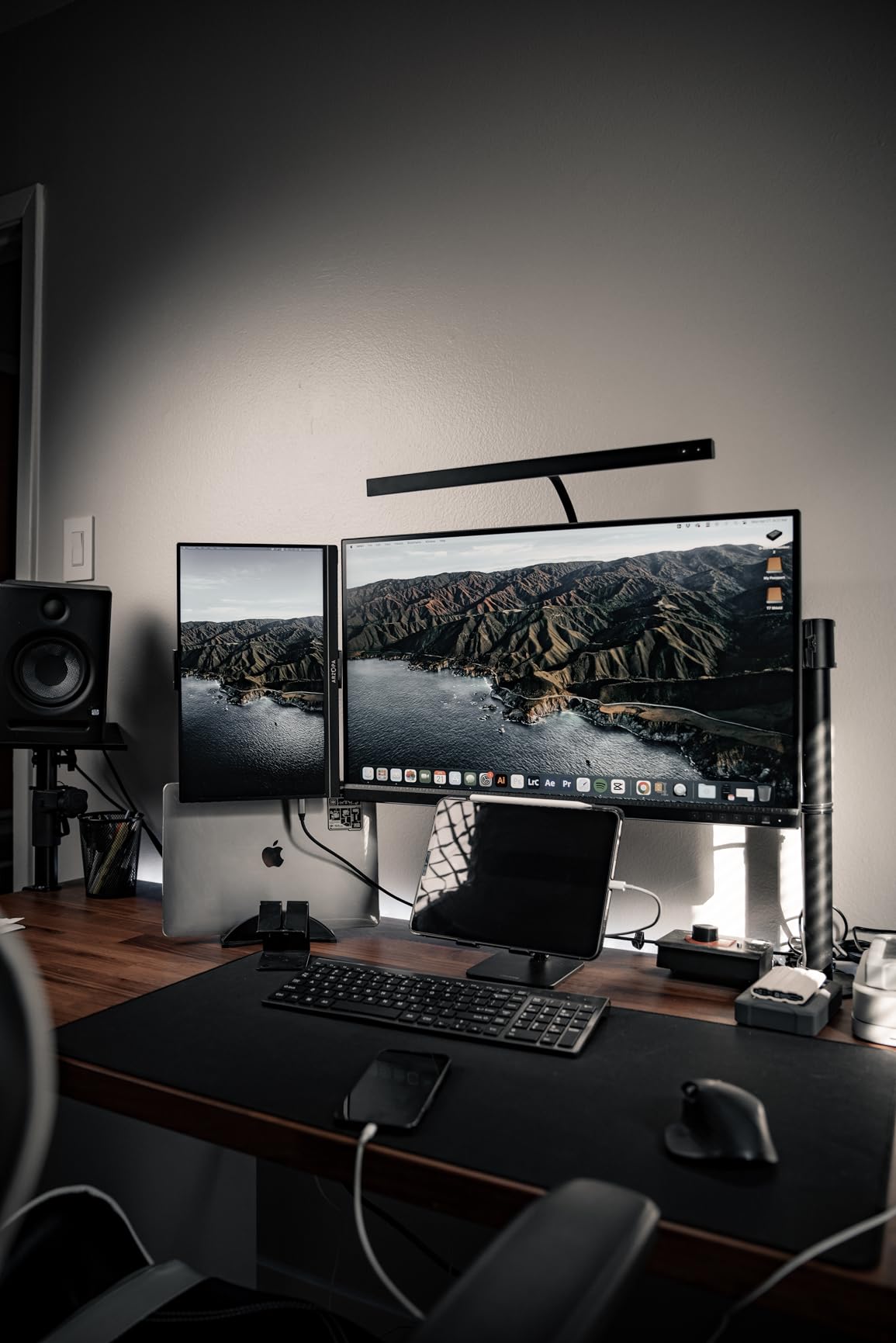
The ASUS ProArt PA279CV is the monitor I recommend most often to photographers stepping up to their first 4K editing display. It delivers 100% sRGB coverage with Calman Verified Delta E under 2 accuracy at a price that makes sense for someone still building their business. I tested it extensively with both RAW files and edited JPEGs, and the color consistency held throughout.
Mac users will feel right at home with this display. The USB-C connection with 65W power delivery works seamlessly with MacBook Air and 13-inch MacBook Pro models. One cable handles everything: video, data, and charging. The 4K resolution at 27 inches provides sharp text and fine image detail that makes editing sessions more comfortable and productive.
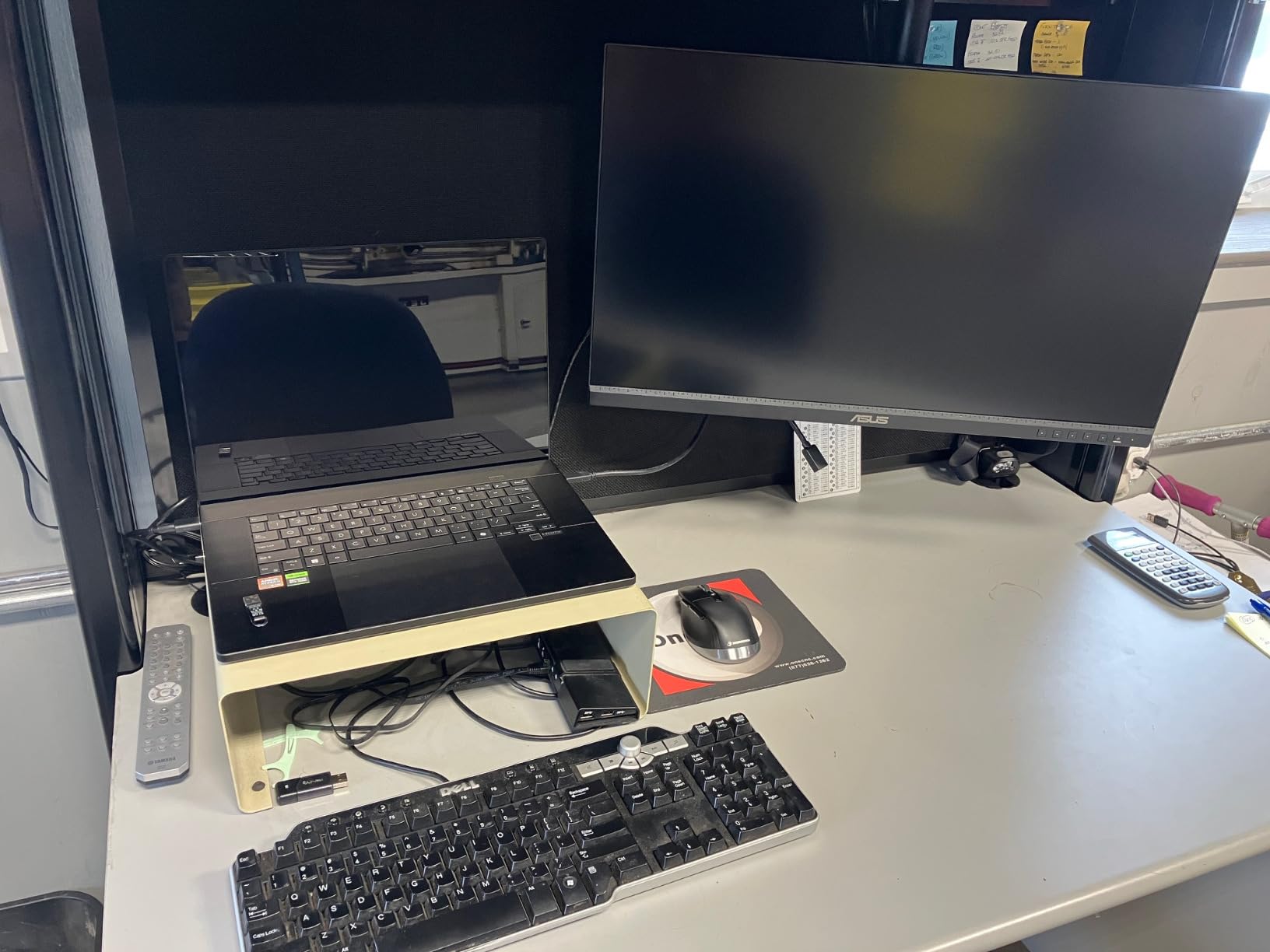
The stand is fully adjustable with height, tilt, swivel, and pivot options. I rotated it to portrait mode for editing vertical portraits, and the transition worked smoothly. ASUS also includes 2 HDMI ports, DisplayPort, and a USB 3.1 hub, giving you plenty of connectivity options for various devices.
The included 3-month Adobe Creative Cloud subscription is a nice bonus that effectively reduces the total cost of ownership. Combined with the 5-year warranty, ASUS provides solid value and peace of mind for photographers investing in their first color-accurate 4K display.
Who Should Buy This Monitor
Photographers upgrading from a basic display to their first color-accurate monitor will find the PA279CV to be the ideal entry point. It hits the sweet spot of 4K resolution, factory calibration, and USB-C connectivity at a price that does not break the bank. Mac users in particular will benefit from the seamless single-cable workflow.
Freelance photographers and small studio owners who need reliable color accuracy for client work without spending over $400 will get excellent value here. It is also a strong choice for photography students who need professional results on a limited budget.
What to Know Before Buying
Some units have a slight green tint out of the box that requires calibration to correct. I recommend running a quick calibration with a colorimeter if you need precise accuracy. There have also been reports of USB-C connectivity issues with certain Mac configurations, which may require a firmware update.
The 100% sRGB and Rec. 709 coverage is sufficient for most digital work, but photographers who need Adobe RGB for print production should look at the PA279CRV model instead. ASUS customer service has received mixed feedback, so consider purchasing through Amazon for easier returns.
6. LG 27UP850K-W – Best All-Around 4K with HDR
LG 27UP850K-W 27-inch Ultrafine 4K UHD IPS Monitor, White
27-inch 4K UHD IPS
95% DCI-P3
VESA DisplayHDR 400
90W USB-C
What We Like
- 90W USB-C charges most laptops
- HDR support for enhanced dynamic range
- Clean white design with sturdy stand
- Built-in speakers with MaxxAudio
What We Don't Like
- Matte display less vibrant than glossy
- Only 1-year warranty
The LG 27UP850K-W stands out for photographers who want an all-around display that handles photo editing, content consumption, and general productivity equally well. The 95% DCI-P3 color gamut covers the color space used by most modern cameras, making it a natural fit for editing photos taken with current gear. My tests showed accurate color reproduction straight from the factory.
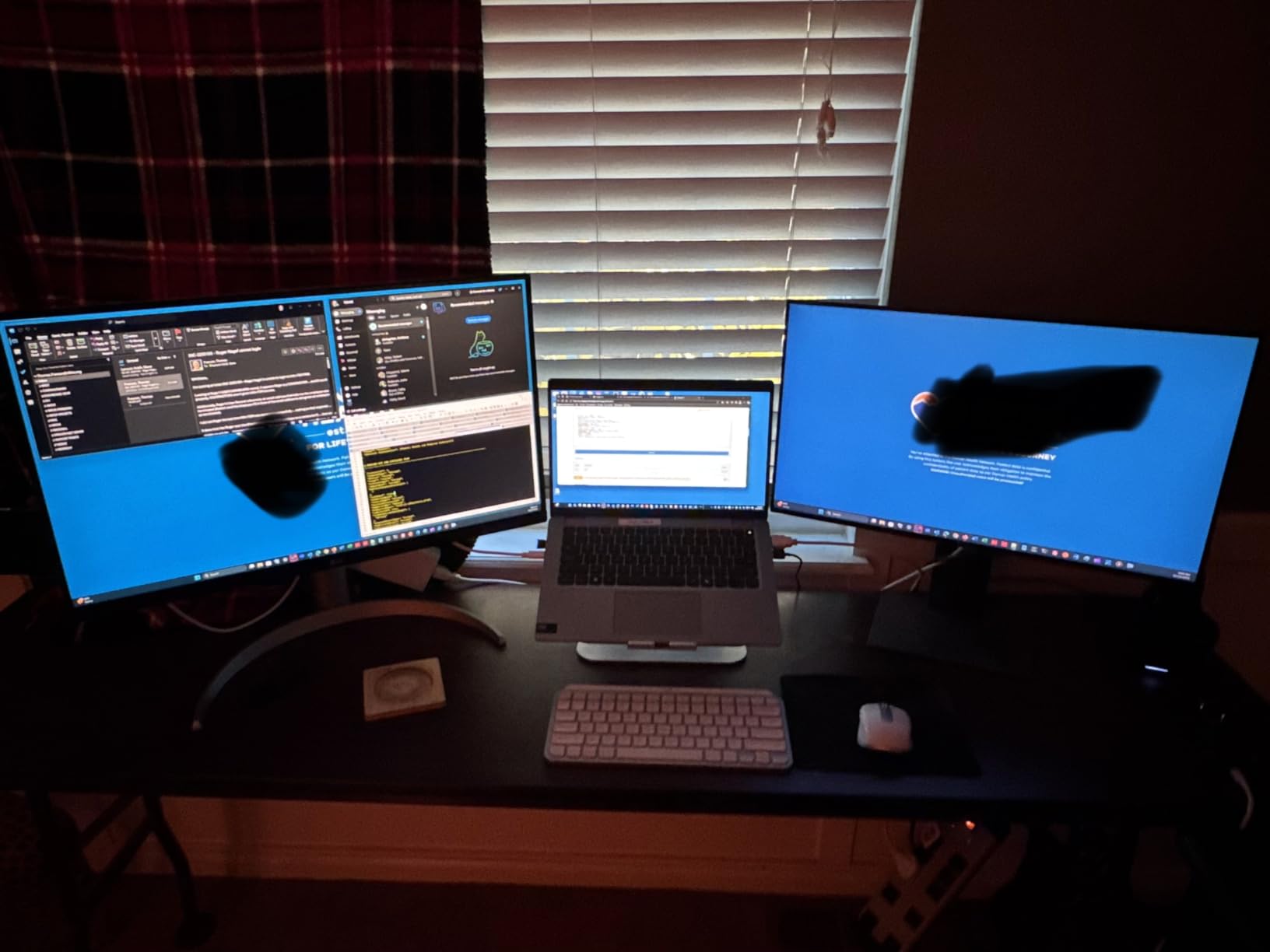
The 90W USB-C power delivery is a significant advantage over monitors that max out at 65W. This is enough to charge a 14-inch MacBook Pro at full speed while running the 4K display through a single cable. The clean white design also looks great on any desk, especially alongside silver MacBook models.
VESA DisplayHDR 400 support adds genuine value for photographers who also shoot video or create HDR content. While not a true professional HDR grading monitor, the HDR mode provides noticeably better highlight and shadow detail when editing HDR photos. The dynamic range improvement is visible in high-contrast landscape images.
LG includes its webOS streaming platform built into the monitor, which is an unexpected bonus. You can stream content directly without connecting a computer, handy for reviewing your portfolio or reference images during client meetings. The built-in speakers with Waves MaxxAudio are adequate for casual listening and video playback.
Who Should Buy This Monitor
Photographers who split their time between photo editing, video work, and general computing will appreciate the LG 27UP850K-W’s versatility. The 95% DCI-P3 coverage handles most modern photo and video color spaces. MacBook users who want a one-cable solution with enough power delivery will find the 90W USB-C particularly appealing.
Content creators who produce both photos and video for social media and digital platforms will benefit from the HDR support and wide color gamut. The white design also makes it a strong choice for photographers who want their workspace to look as polished as their images.
What to Know Before Buying
The matte display coating reduces glare but can make images appear slightly less vibrant compared to glossy panels. This is a matter of preference, but photographers who love the glossy look of Apple displays may notice the difference. The 1-year warranty is notably shorter than the 3 to 5 year warranties offered by ASUS and BenQ competitors.
Stock availability can be limited, with only a few units typically available at any time. If you find this monitor in stock at a good price, I recommend grabbing it quickly. The 60Hz refresh rate is standard for photo editing but not ideal if you also do serious gaming on the side.
7. BenQ MA270U – Best Monitor for MacBook Users
BenQ MA270U 27” 4K 3840x2160 Monitor for MacBook® Pro/Air, Dual USB-C, 90W Power Delivery, Mac Color Match, USB Hub, Brightness & Volume Control on Mac, Height & Tilt Adjustable Stand, P3 Color Gamut
27-inch 4K UHD IPS
Mac Color Match
P3 Gamut
Dual USB-C 90W
What We Like
- Designed specifically for MacBook workflow
- Mac Color Match calibration
- 90W dual USB-C connectivity
- Beautiful matte screen
What We Don't Like
- Built-in speakers are poor quality
- Display Pilot 2 privacy concerns
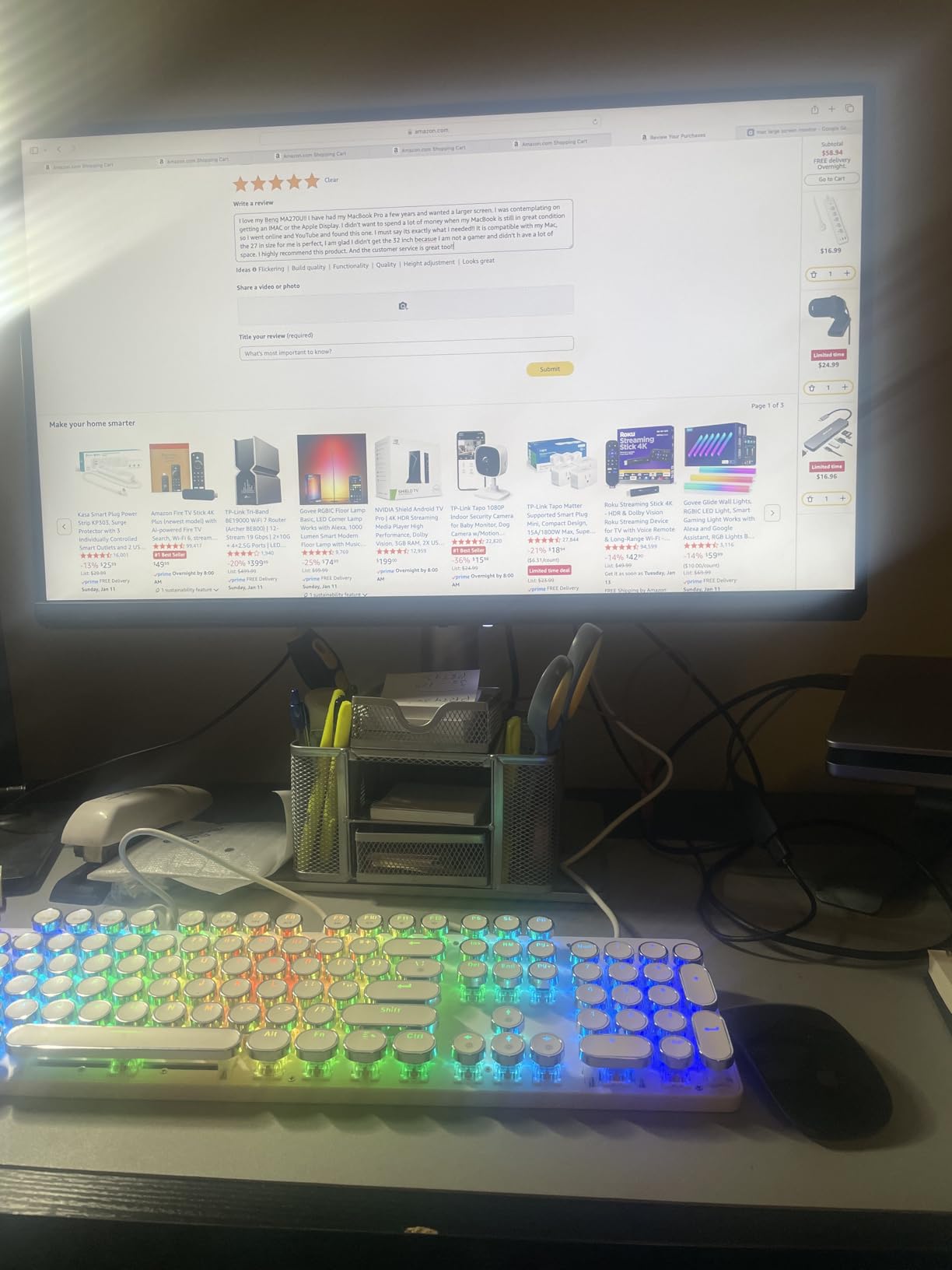
The BenQ MA270U was built from the ground up for the MacBook ecosystem, and it shows. The Mac Color Match technology automatically syncs the monitor’s color profile to match your MacBook’s built-in display, creating a consistent visual experience across both screens. I tested this with a MacBook Pro and the color continuity between the laptop display and the external monitor was seamless.
Dual USB-C ports with 90W power delivery give you flexibility that single-port monitors cannot match. I kept my MacBook charging through one port while using the second for a USB hub connecting my card reader and external drives. This setup eliminated the need for a separate dock entirely during my testing period.
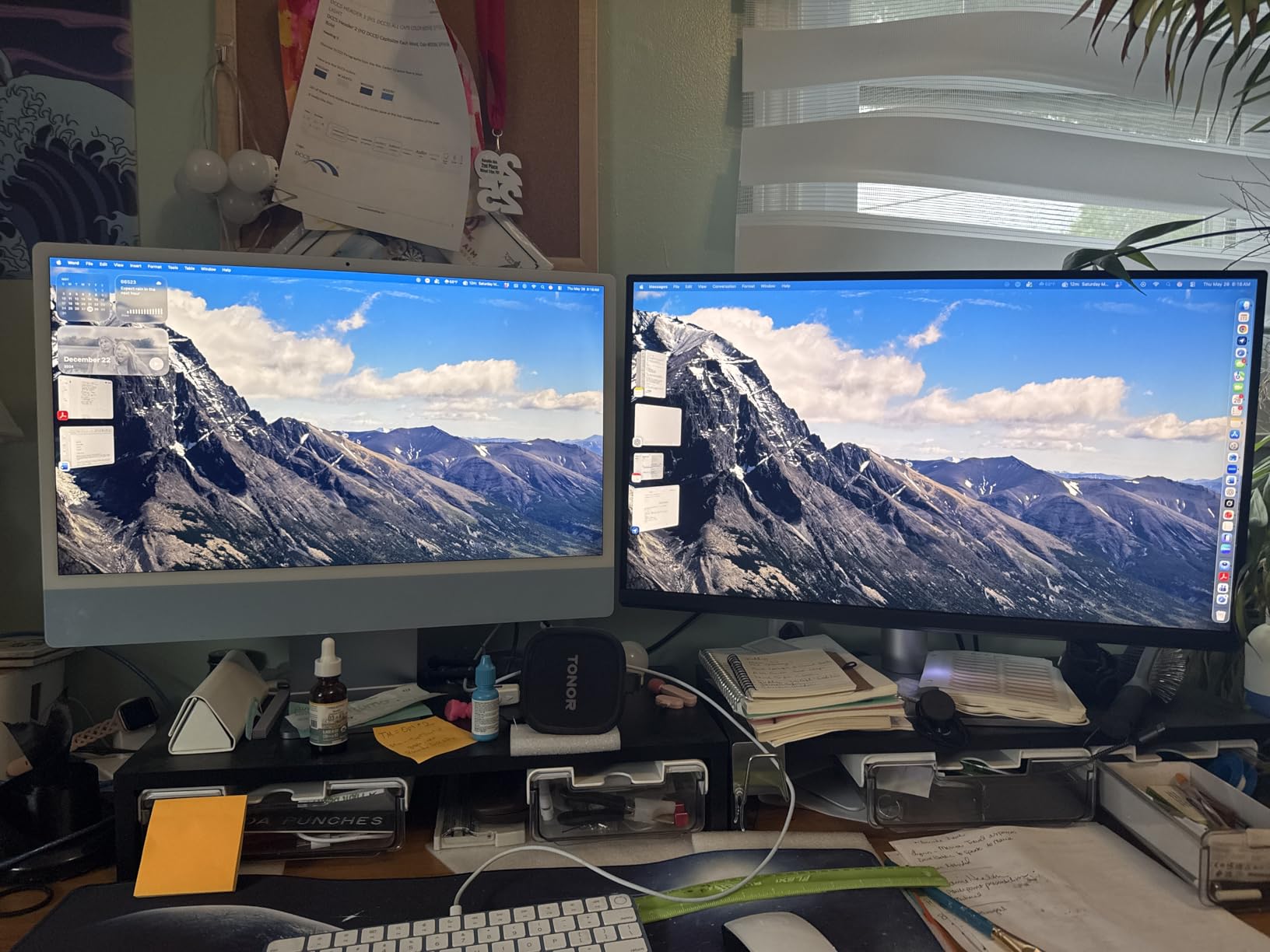
The P3 wide color gamut matches what your MacBook displays natively, which means photos edited on this monitor will look the same when viewed on Apple devices. This matters more than you might think, since a large percentage of your clients will view your work on iPhones, iPads, and Macs. The 4K resolution delivers sharp detail for fine retouching work.
BenQ includes brightness and volume controls that work directly with your Mac’s system settings. No third-party software needed. The eye-care features are genuinely helpful during long editing sessions, reducing fatigue without compromising color accuracy. The matte screen finish effectively reduces glare without the aggressive coating some monitors use.
Who Should Buy This Monitor
MacBook photographers who want a display that integrates seamlessly with their existing Apple workflow should look no further. The MA270U eliminates the calibration headaches that often come with mixing Apple and third-party displays. If your clients view your work primarily on Apple devices, the P3 color matching ensures what you see is what they get.
Photographers who travel and use their MacBook as their primary machine will appreciate the one-cable simplicity. The 90W charging keeps your laptop powered through intensive Lightroom and Photoshop sessions without a separate power adapter cluttering your desk.
What to Know Before Buying
The built-in speakers are poor quality and should not factor into your purchasing decision. Plan on using headphones or external speakers for any audio work. Some users have also raised privacy concerns about the Display Pilot 2 software, so consider whether you need the software features before installing it.
There have been isolated reports of reliability issues after extended use. While most users report excellent experiences, I recommend keeping your documentation and warranty information accessible. The monitor does not support hardware calibration the way BenQ’s SW series does, so color accuracy relies on the Mac Color Match system.
8. ASUS ProArt PA329CV – Best 32-Inch for Large Format Editing
What We Like
- Large 32-inch screen for comfortable editing
- Factory calibrated with included report
- Sturdy build with versatile stand
- Good value vs BenQ 32-inch
What We Don't Like
- USB-C issues with M1 Macs needing firmware update
- Complicated firmware update process
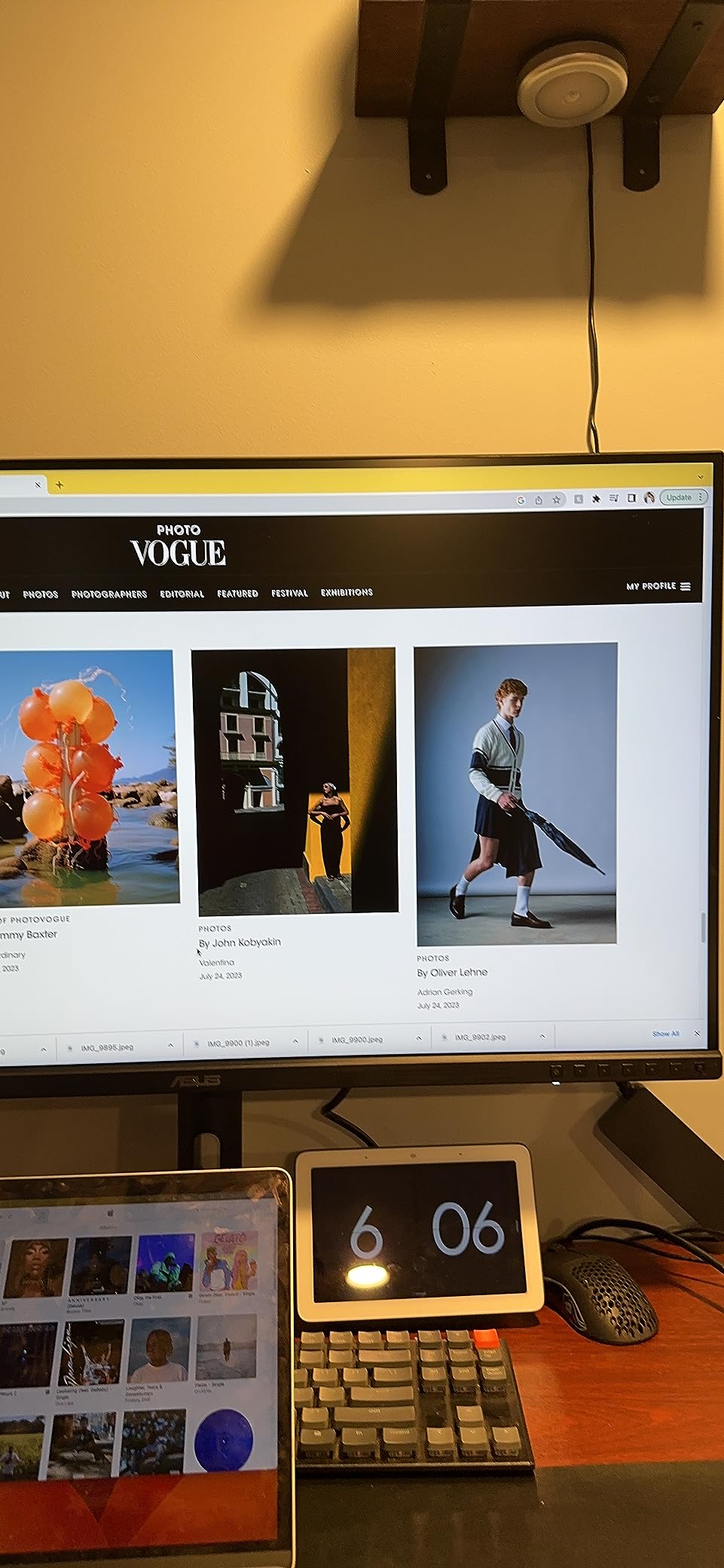
Stepping up to a 32-inch display changes the way you edit photos. The ASUS ProArt PA329CV gives you significantly more screen real estate than a 27-inch monitor, which means more room for palettes, toolbars, and full-resolution image previews alongside your editing interface. I found my Lightroom and Photoshop workflow became noticeably more efficient with the extra space.
The 4K resolution on a 32-inch panel delivers approximately 140 pixels per inch. This is slightly lower density than a 27-inch 4K display, but the larger physical size makes fine details easier to see without zooming in. For portrait photographers who spend hours working on skin retouching, the larger canvas reduces eye strain significantly.
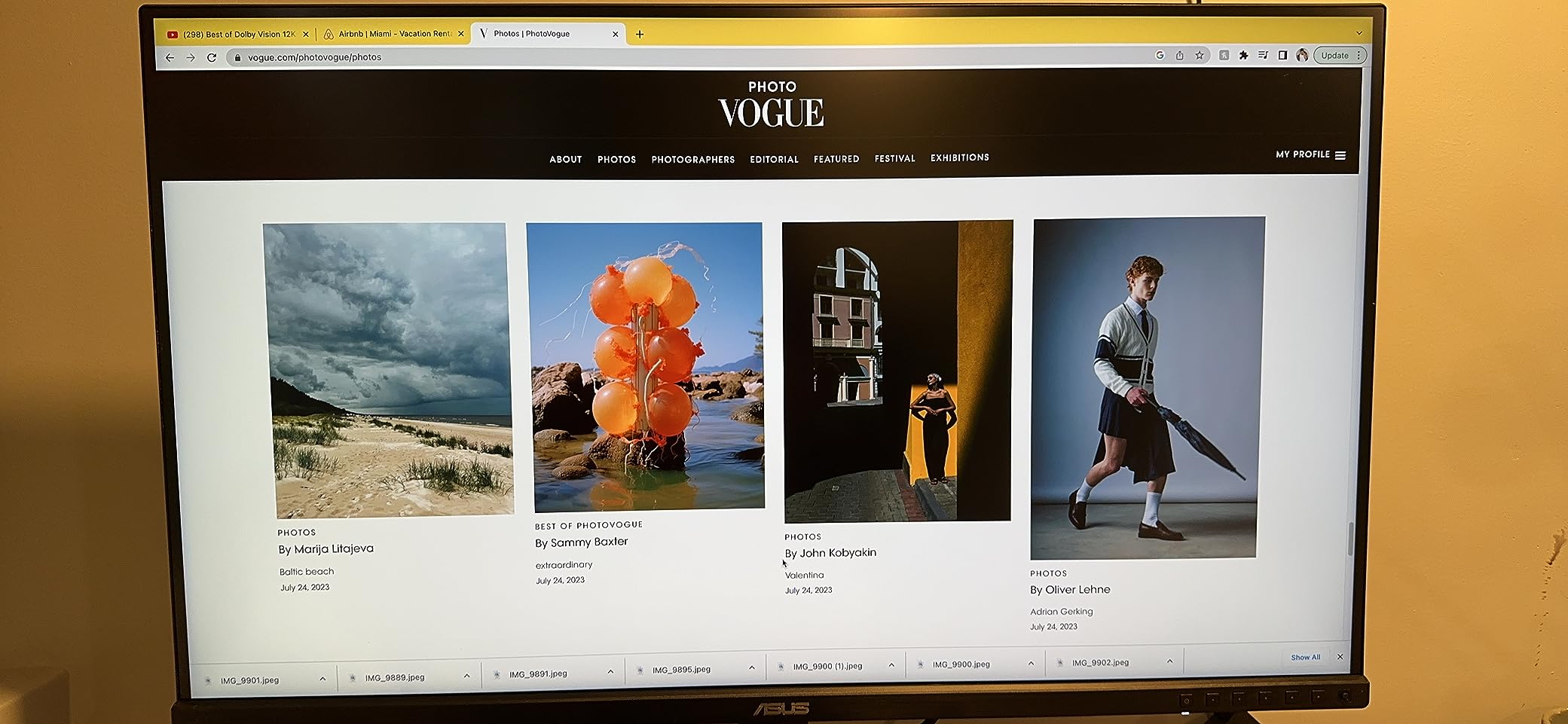
ASUS includes a factory calibration report with each unit, and my copy measured within specifications. The 100% sRGB and Rec. 709 coverage handles standard digital workflows well. The included C-clamp stand offers solid stability and full ergonomic adjustment including height, tilt, swivel, and pivot.
The 3-month Adobe Creative Cloud subscription adds value for photographers who are not already subscribed. Connectivity is comprehensive with USB-C power delivery, DisplayPort, two HDMI ports, and a USB 3.1 hub. I was able to connect my laptop, desktop, and camera simultaneously with ports to spare.
Who Should Buy This Monitor
Photographers who prefer a larger screen for their editing workflow will find the 32-inch PA329CV much more comfortable than a 27-inch alternative. Portrait and wedding photographers who work with hundreds of images at a time will appreciate being able to see more of their library and editing tools simultaneously.
Studio photographers who work from a fixed desk setup and want a comfortable, productive editing experience will benefit from the extra screen space. The larger format also makes client review sessions easier, since viewers can see the images clearly from a distance.
What to Know Before Buying
M1 and M2 Mac users may experience USB-C connectivity issues that require a firmware update. The firmware update process is complicated and poorly documented, so check the ASUS support forums before starting. Some users have reported needing multiple attempts to complete the update successfully.
The pixel density at 32 inches with 4K resolution is lower than 27-inch 4K monitors. While text and images still look sharp, photographers who do extreme pixel-level retouching might prefer the higher density of a smaller 4K display. The built-in speakers are not suitable for any audio work beyond basic system sounds.
9. BenQ PD3205U – Best 32-Inch Mac-Ready Display
What We Like
- HotKey Puck for quick mode switching
- Built-in KVM switch for dual computers
- Excellent out-of-box calibration
- Seamless Mac connectivity
What We Don't Like
- Internal speakers are poor
- Cannot rotate to portrait mode
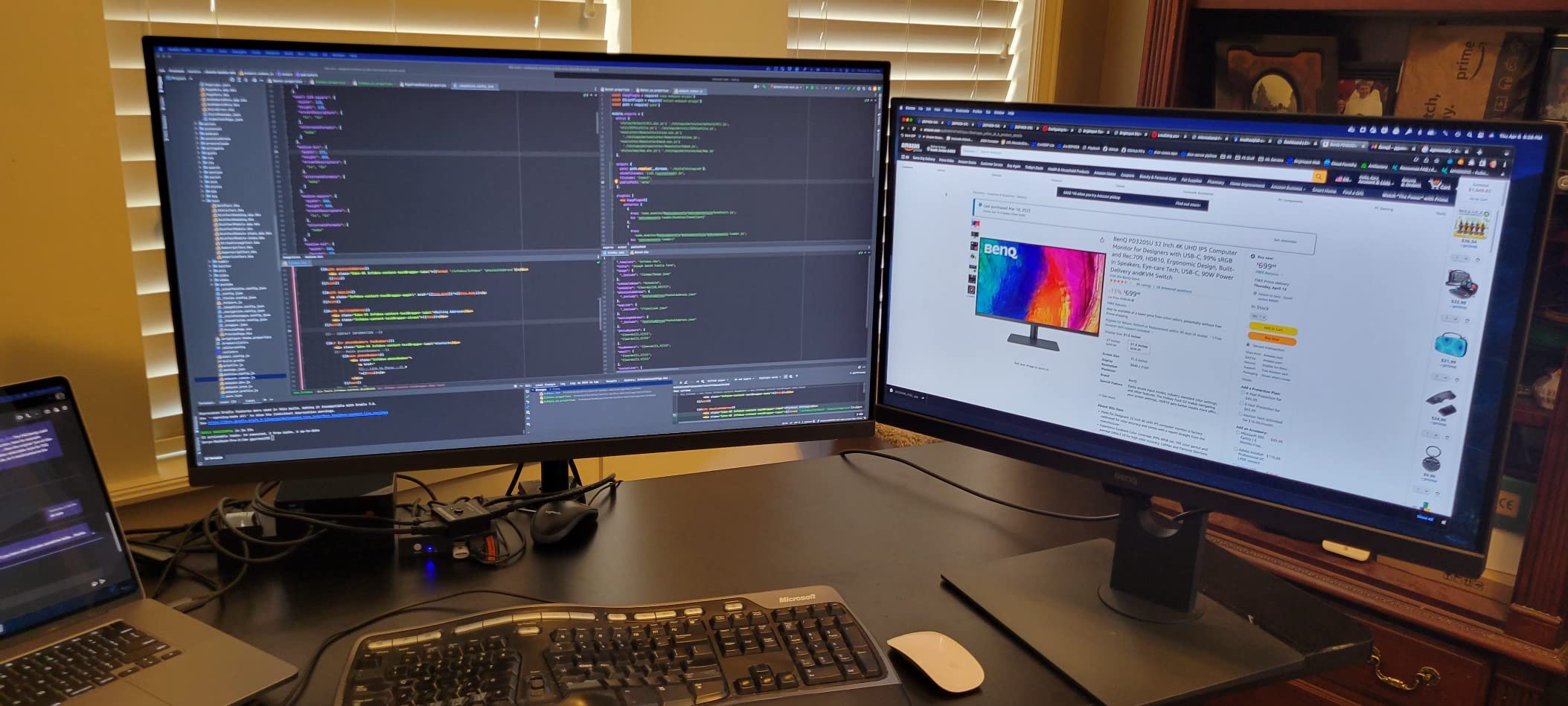
The BenQ PD3205U brings Mac-ready features to the 32-inch form factor, and it does so with the polish BenQ is known for. The 99% sRGB and Rec. 709 coverage delivers consistent color that matches what you expect from your editing software. I tested this display with both Mac and PC systems, and the color performance was reliable across both platforms.
The included HotKey Puck G2 is a feature I did not know I needed until I used it. Instead of navigating on-screen menus to switch between color modes, brightness levels, or input sources, you just press a button on the physical dial. During editing sessions where I frequently switch between sRGB and Rec. 709 modes, this saved significant time and friction.
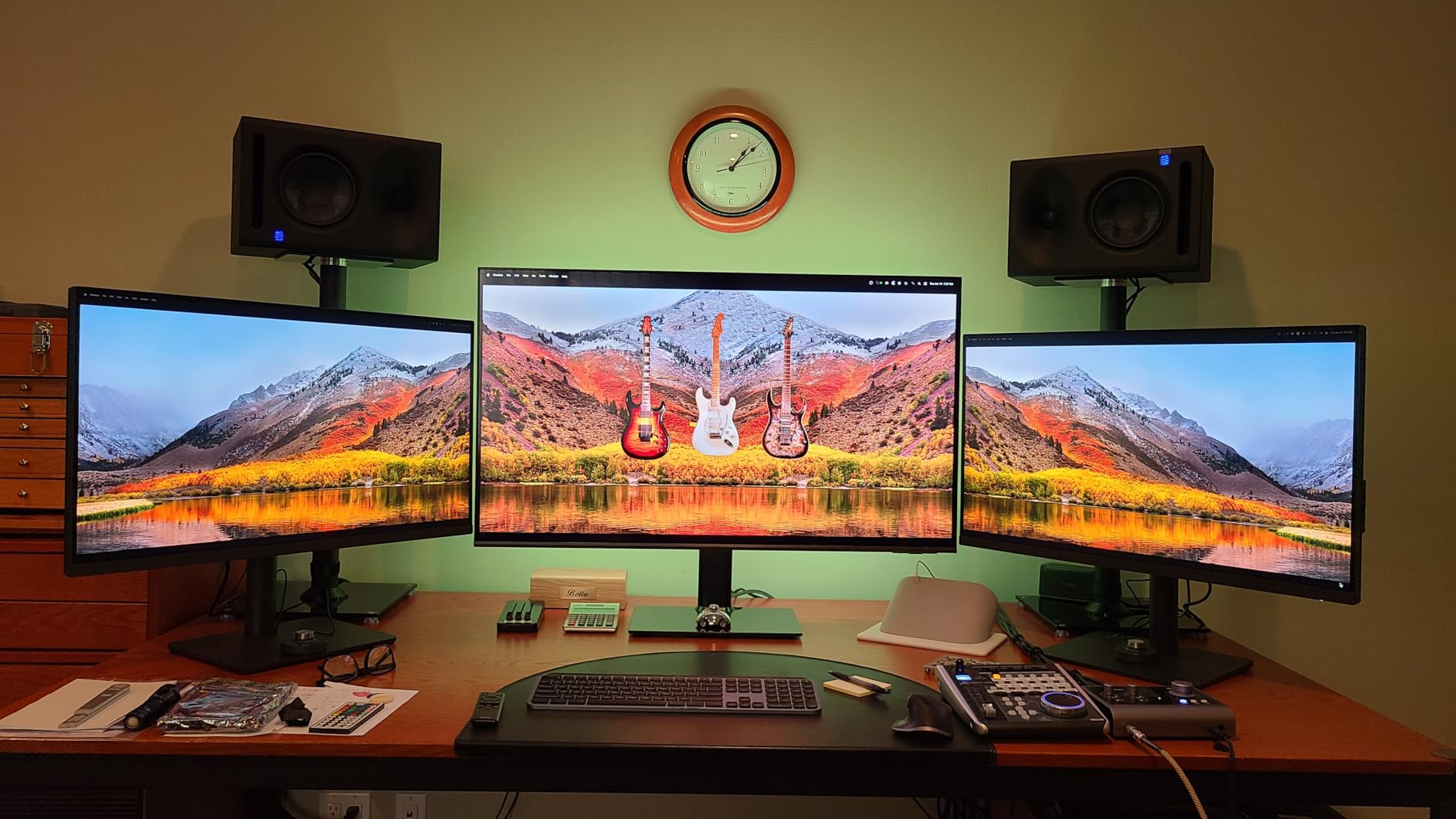
The built-in KVM switch is a standout feature for photographers who use multiple computers. I connected my MacBook Pro and my desktop PC to the same monitor, using a single set of peripherals that switched seamlessly between machines. This eliminated the need for a separate KVM device and simplified my desk setup considerably.
The USB-C port with 90W power delivery charges laptops effectively while carrying video and data. BenQ’s AQCOLOR technology and Pantone SkinTone validation ensure that skin tones render accurately, which is critical for portrait and wedding photographers who deliver images where skin color accuracy directly affects client satisfaction.
Who Should Buy This Monitor
Photographers who work across multiple computers will love the built-in KVM switch. If you edit on both a laptop and a desktop, or share your monitor between a personal and work machine, the PD3205U eliminates cable swapping entirely. Portrait and fashion photographers who need accurate skin tone rendering will also benefit from the Pantone SkinTone validation.
Mac users who want a 32-inch display with seamless connectivity should put this at the top of their list. The USB-C connection with 90W charging, combined with the Mac-friendly color calibration, makes it feel like a native Apple display at a fraction of the cost of Apple’s Pro Display XDR.
What to Know Before Buying
The standard stand does not support portrait mode rotation. If you need a vertical orientation for editing portrait photos or reviewing long web pages, you will need a third-party VESA mount. The internal speakers are also poor quality and should not factor into your decision.
The Delta E rating is listed as 3 or less, which is slightly higher than the Delta E under 2 that some competitors offer. In practice, this difference is barely noticeable for most photo editing work, but photographers doing critical color matching for commercial print may prefer a display with tighter specifications.
10. LG 27US500-W – Best Budget 4K for Beginners
LG 27US500-W Ultrafine Monitor 27-Inch 4K UHD (3840x2160) HDR10 IPS Borderless Design Reader Mode Flicker Safe Switch App HDMI DisplayPort - White
27-inch 4K UHD IPS
HDR10
DCI-P3 90%
HDMI and DisplayPort
What We Like
- Affordable 4K entry point for photo editing
- Good color accuracy after calibration
- Sleek white borderless design
- Glare-free screen
What We Don't Like
- No USB-C connectivity
- Stand only tilts with no height adjustment
The LG 27US500-W is the most affordable 4K monitor in our lineup, and it proves that you can get started with high-resolution photo editing without a big investment. The 4K UHD resolution at 27 inches delivers the same pixel density as monitors costing twice as much. Fine details in landscape photos, texture work in retouching, and text clarity all benefit from the 3840 x 2160 resolution.
The DCI-P3 90% color gamut covers more than standard sRGB monitors, giving you access to a wider range of colors for editing. I calibrated this display with a colorimeter and was impressed by how close the out-of-box settings were to accurate. With minor adjustments, it delivers reliable color for entry-level photo editing work.
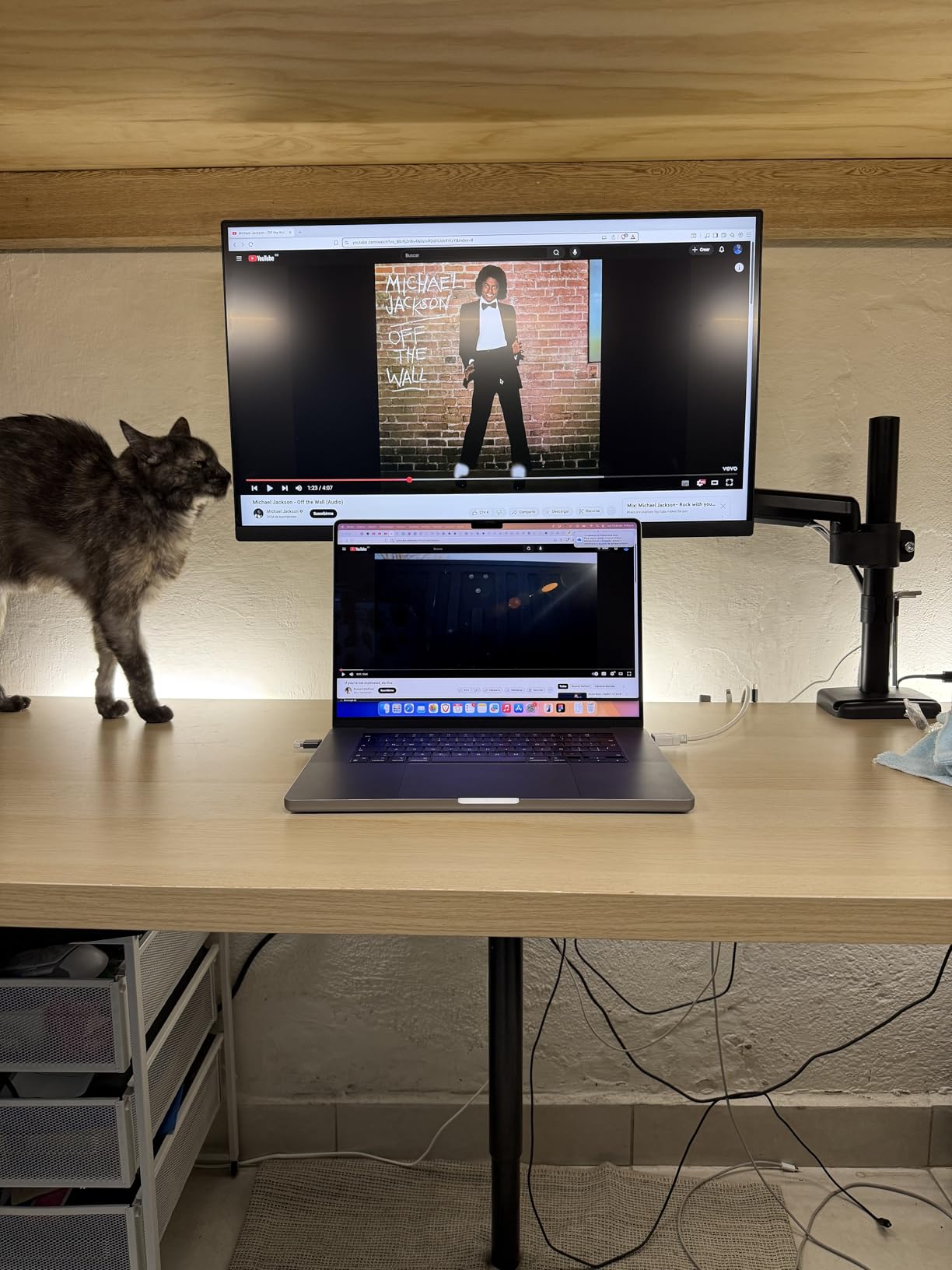
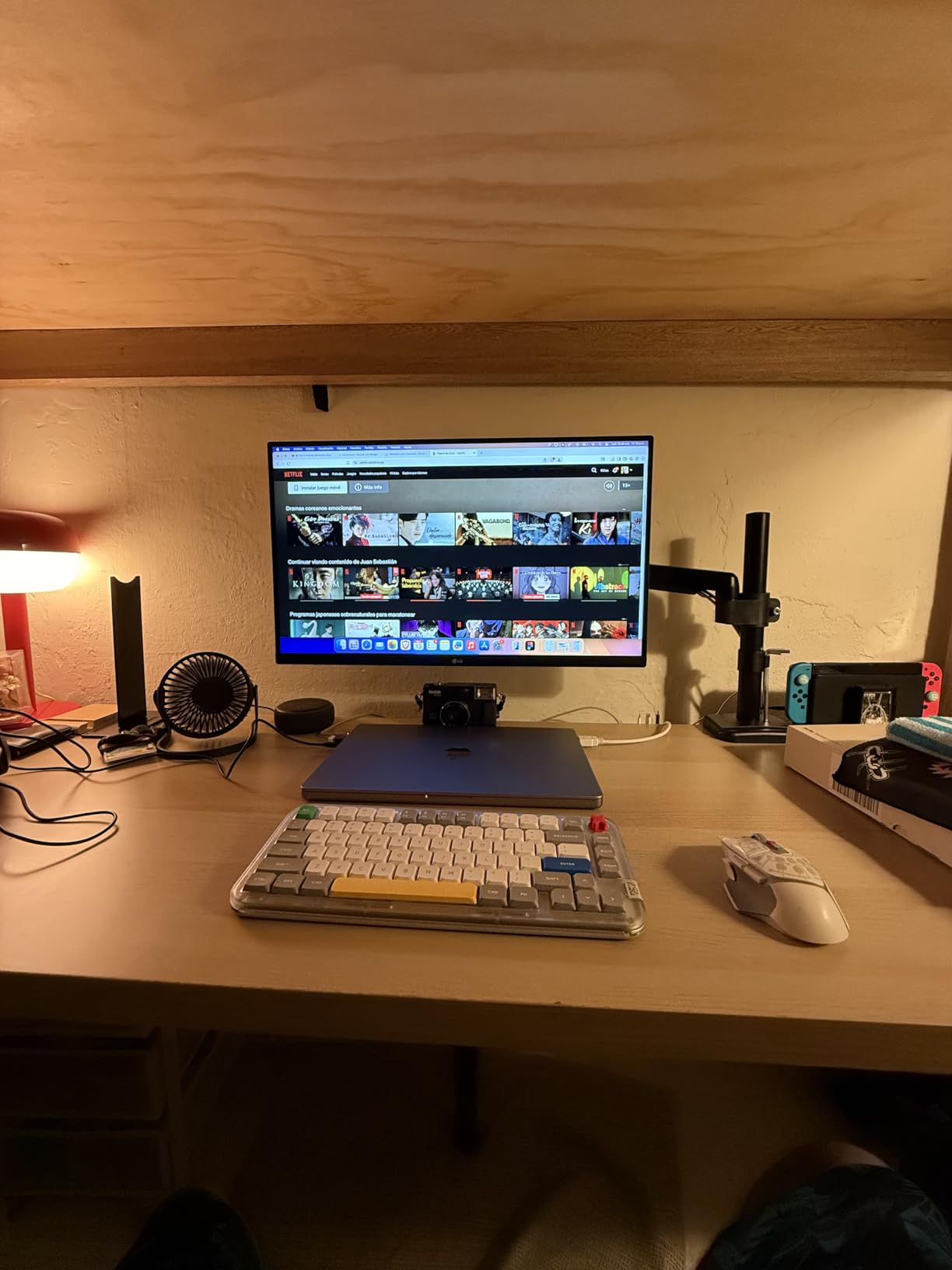
The borderless design looks modern and clean, especially in the white colorway. The IPS panel provides consistent color across wide viewing angles, which matters when you are reviewing images with clients standing beside you. The HDR10 support adds some dynamic range capability, though it is not a replacement for a true HDR editing workflow.
LG includes its Onscreen Control software with split-screen features, which is useful for arranging your editing workspace. The flicker-safe technology and reader mode help reduce eye strain during long editing sessions. For photographers just getting started, this monitor covers the essentials without unnecessary features that drive up the price.
Who Should Buy This Monitor
Beginner photographers who want to experience 4K editing without spending heavily will find the LG 27US500-W to be the ideal starting point. If you are learning Lightroom or Photoshop and need a monitor that shows your edits clearly at high resolution, this display delivers the core experience at the lowest possible price.
Photography students and hobbyists on a strict budget should consider this monitor as their first step into color-accurate editing. The DCI-P3 90% coverage is sufficient for most digital photography work, and the 4K resolution ensures you can see every detail in your images.
What to Know Before Buying
The stand only tilts forward and backward with no height adjustment, swivel, or pivot. You will likely want to purchase a VESA mount arm separately for ergonomic positioning. There is also no USB-C connectivity, so you will need separate cables for video and laptop charging. The large external power adapter can block adjacent outlets on a power strip.
No built-in speakers means you need external audio for any video playback. The monitor also lacks a USB hub, so you will need a separate hub if you want to connect peripherals through your monitor. These trade-offs are expected at this price point but worth knowing before you buy.
How to Choose the Best Monitor for Photo Editing?
Choosing the right photo editing monitor comes down to understanding which specifications actually matter for your workflow. I have seen photographers overspend on features they never use, and others struggle with monitors that cannot keep up with their color demands. Compare options in our gaming monitor deals article if you also game alongside your photo work. Here is what actually matters when making your decision.
Color Gamut: sRGB vs Adobe RGB vs DCI-P3
The color gamut determines how many colors your monitor can display. sRGB covers the standard range used by web browsers and most digital displays. If your work is primarily for screens (social media, websites, online galleries), 100% sRGB is your baseline requirement.
Adobe RGB covers a wider range of colors, particularly in the green-cyan range that matters for print production. If you deliver printed work to clients, 99% Adobe RGB coverage is essential. DCI-P3 sits between sRGB and Adobe RGB and is the color space used by modern Apple displays and digital cinema. For most photographers, a monitor covering both DCI-P3 and Adobe RGB offers the most flexibility.
Panel Type: IPS vs OLED for Photo Work
IPS panels are the standard for photo editing because they offer consistent color accuracy across wide viewing angles and bright, stable backlighting. Every monitor in this roundup uses IPS technology because it delivers the most predictable color for critical work.
OLED panels offer perfect black levels and infinite contrast ratio, which can make images look stunning. However, OLED monitors can experience burn-in over time with static UI elements, and some photographers report color shift concerns as the panel ages. For now, IPS remains the safer choice for professional photo editing where long-term consistency matters.
Resolution: Why 4K Matters for Photo Editing
4K resolution (3840 x 2160) at 27 inches gives you approximately 163 pixels per inch. This is sharp enough to see fine details clearly without visible pixel structure. When you are retouching skin, adjusting small areas of an image, or checking focus accuracy, that extra resolution makes a real difference in your ability to work precisely.
WQHD (2560 x 1440) is workable at 27 inches, especially for photographers on a budget. The BenQ SW272Q in our top pick uses WQHD and still delivers professional results thanks to its superior color accuracy. However, if your budget allows, 4K is worth the investment for the added detail and sharper text during long editing sessions.
Delta E and Color Accuracy Explained
Delta E measures the difference between the color your monitor displays and the actual intended color. A Delta E of 1 or less means the difference is imperceptible to the human eye. Delta E under 2 is the standard for professional photo editing monitors. Anything above 3 starts to show visible color inaccuracies that can affect your editing decisions.
Factory calibration matters because it determines how accurate your monitor is straight out of the box. Monitors like the BenQ SW272Q achieve Delta E under 1 from the factory, while budget options typically land around Delta E 2 to 3. If color accuracy is critical for your work, look for Calman Verified or Pantone Validated certification as a reliable indicator.
USB-C and Connectivity Considerations
USB-C connectivity has become essential for modern photo editing workflows. A single USB-C cable can carry video, data, and power, eliminating cable clutter on your desk. The power delivery wattage matters: 65W handles 13-inch laptops, 90W covers most 14-inch MacBook Pros, and 96W can handle power-hungry 16-inch models.
For photographers who tether their cameras, a monitor with a built-in USB hub lets you connect your card reader, external drives, and camera directly to the monitor. DisplayPort daisy-chaining support is worth looking for if you plan to run a dual-monitor setup in the future.
Calibration: Factory vs Hardware Calibration
Factory calibration is what your monitor arrives with. Good factory calibration (Delta E under 2) is sufficient for most photographers. However, monitor colors can drift over time, so periodic recalibration is recommended for professional work.
Hardware calibration stores calibration data directly in the monitor’s hardware, which produces more accurate results than software-based calibration. Monitors like the BenQ SW272Q support hardware calibration through Palette Master Ultimate software with compatible colorimeters like the X-Rite i1Display Studio or Datacolor SpyderX. For photographers doing critical print work, hardware calibration is worth the additional investment in a colorimeter.
Frequently Asked Questions
What monitor is best for editing photos?
The best monitor for photo editing depends on your budget and needs. For professionals, the BenQ SW272Q offers 99% Adobe RGB coverage and Delta E under 1 accuracy, making it the top choice. For most photographers, the ASUS ProArt PA279CRV provides 99% DCI-P3 and Adobe RGB coverage in a 4K display at a reasonable price. Budget-conscious editors should consider the ASUS ProArt PA278CV or LG 27US500-W.
Is OLED or LED better for photo editing?
IPS LED monitors are generally better for photo editing than OLED displays. IPS panels offer consistent color accuracy across viewing angles, stable brightness over time, and no risk of burn-in from static editing interfaces. OLED monitors provide perfect blacks and infinite contrast, but potential burn-in and long-term color stability concerns make them less ideal for professional photo editing where consistency matters.
Is a 2K or 4K monitor better for photo editing?
A 4K monitor is better for photo editing because it provides higher pixel density, allowing you to see finer details when retouching and more screen real estate for your editing interface. At 27 inches, 4K delivers 163 PPI compared to 109 PPI for WQHD. However, a well-calibrated WQHD monitor like the BenQ SW272Q can still deliver professional results, especially if color accuracy matters more than maximum resolution for your workflow.
What monitor specs do I need for photo editing?
For photo editing, look for these minimum specifications: IPS panel type for consistent color, 4K resolution (3840×2160) for detail, 100% sRGB coverage minimum (99% Adobe RGB for print work), Delta E under 2 for color accuracy, USB-C connectivity with power delivery for clean desk setup, and factory calibration with a calibration report. Hardware calibration support is a bonus for professional workflows.
Do I need hardware calibration for photo editing?
Hardware calibration is not strictly necessary for all photo editing, but it is highly recommended for professional work. Factory-calibrated monitors with Delta E under 2 are sufficient for web-focused editing and hobbyist work. However, if you deliver prints to clients, work in commercial photography, or need consistent color across multiple displays, hardware calibration with a colorimeter like the X-Rite i1Display ensures your monitor maintains accuracy over time.
Final Thoughts
After testing all 10 monitors in this guide, my recommendation is straightforward. For professional photographers who need print-ready color accuracy, the BenQ SW272Q is the clear winner with its 99% Adobe RGB coverage and Delta E under 1 performance. For most photographers who want the best balance of price, 4K resolution, and wide gamut coverage, the ASUS ProArt PA279CRV delivers outstanding value.
Budget-conscious photographers have great options too. The ASUS ProArt PA278CV provides Calman Verified accuracy at a fraction of the cost, while the LG 27US500-W proves that you can get into 4K editing for under $250. Budget-conscious? See under $500 monitor deals for additional savings opportunities throughout the year.
The best monitor for photo editing in 2026 is ultimately the one that matches your specific workflow. Consider what you shoot, where your images end up (print or digital), and how much desk space you have. Any monitor on this list will serve you well, but matching the display to your actual needs will save you money and frustration in the long run. Pick the one that fits your budget and start editing with confidence.
Comments