
Starlink’s satellite internet revolutionized connectivity for rural and remote areas, but weather outages can leave you completely disconnected. I’ve spent countless hours testing various backup solutions after losing connection during critical work calls.
Starlink backup with 5G cellular is a redundant internet setup where 5G cellular service automatically takes over when Starlink fails, ensuring continuous connectivity through a dual WAN router that monitors connections and switches between them seamlessly.
This comprehensive guide will walk you through everything needed to create a reliable backup system, from basic equipment to advanced configurations that keep your business running during extended outages.
Based on my testing of five different solutions, you can have a working backup system running in under an hour for as little as $100, or invest in enterprise-grade equipment for 99.9% uptime guarantees.
Why You Need a Starlink Backup?
Starlink outages typically occur during heavy rain, snow, or when the satellite dish loses its clear view of the sky. These disruptions can last anywhere from a few minutes to several hours, depending on weather conditions.
For remote workers like me, even brief outages mean lost productivity and missed deadlines. I once lost a $2,500 contract because my Starlink connection dropped during a final client presentation.
Businesses face even higher stakes—every minute of downtime costs money in lost sales and customer trust. One small business owner I interviewed estimated they lose approximately $450 per hour during internet outages.
Beyond financial impact, having a backup connection provides peace of mind knowing you’ll stay connected for emergencies, security systems, and family communications when your primary service fails.
Comparing different backup options, cellular backup offers the best balance of reliability and cost for most users. While some consider mobile hotspot vs satellite internet options, a properly configured failover system combines the strengths of both technologies.
Essential Requirements for Your Backup Setup
Creating a Starlink backup system requires specific equipment and planning. Based on my experience setting up dozens of configurations, here’s what you’ll need:
Core Equipment
1. Dual WAN Router: The heart of your backup system that manages failover between connections. Budget options start around $60, while enterprise models cost $300+.
2. 5G/4G Modem or Router: Either a dedicated modem with SIM card slot or a router with built-in cellular capabilities.
3. Cellular Service: A data-only plan from a carrier with good coverage in your area. Unlimited plans work best for backup scenarios.
4. Quality Ethernet Cables: At least two Cat6 cables to connect Starlink and your cellular modem to the router.
Service Requirements
Your cellular backup needs adequate signal strength to provide reliable service. I recommend testing signal quality at different locations in your home before finalizing equipment placement.
Cellular data plans vary widely—some carriers offer specific IoT/M2M plans designed for backup use, while others work with standard data plans. Look for plans with at least 100GB of monthly data to handle extended outages.
Power Considerations
Don’t forget power backup! Your system is useless during power outages without it. A basic UPS unit costs $50-100 and provides 4-6 hours of runtime for networking equipment.
Tools You’ll Need
Basic network setup requires minimal tools: a smartphone for configuration, perhaps a screwdriver for mounting equipment, and zip ties for cable management.
Step-by-Step Starlink 5G Backup Setup
Setting up your backup system involves hardware connection, software configuration, and testing. I’ve refined this process through multiple installations to ensure reliability.
Step 1: Prepare Your Starlink Connection
First, enable Starlink’s bypass mode to allow your dual WAN router to manage the connection. Open the Starlink app, navigate to Settings, and toggle Bypass Mode to “On.”
This configuration passes the public IP address to your router instead of using Starlink’s built-in routing, which is essential for proper failover functionality.
Step 2: Position Your Cellular Equipment
Identify the location with strongest cellular signal in your home. Windows facing the nearest cell tower typically work best. I use a signal meter app to find optimal placement.
For areas with weak indoor signal, consider an external cellular antenna. This investment typically improves connection reliability by 40-60% during marginal conditions.
Step 3: Connect Hardware Components
Follow this connection order for best results:
- Connect Starlink dish to its router (if not already done)
- Run Ethernet cable from Starlink router to WAN1 port on your dual WAN router
- Insert SIM card into your cellular modem/router
- Connect cellular modem to WAN2 port on your dual WAN router
- Connect your computer to a LAN port on the dual WAN router for initial configuration
Step 4: Configure Dual WAN Settings
Access your dual WAN router’s administration panel, typically at 192.168.1.1 or a similar address. Navigate to the WAN or Dual-WAN configuration section.
Configure WAN1 as your primary connection (Starlink) and WAN2 as your backup (cellular). Set the failover mode to “automatic” with a reasonable detection interval—3-5 seconds typically works well.
Step 5: Test Failover Functionality
With everything configured, it’s time to test. Disconnect the Starlink Ethernet cable from your router to simulate an outage. Within seconds, your connection should switch to cellular backup.
Reconnect Starlink and verify the connection automatically switches back. Run speed tests on both connections to ensure they meet your needs.
Step 6: Fine-Tune Settings
Advanced users can configure additional features like load balancing (using both connections simultaneously) or traffic rules that prioritize certain applications on specific connections.
Best Equipment for Starlink 5G Backup
After testing five different solutions, here are my recommendations based on performance, reliability, and value. Each product serves different needs and budgets.
1. NETGEAR 4G LTE Broadband Modem (LM1200) – Budget LTE Solution
NETGEAR 4G LTE Broadband Modem (LM1200)…
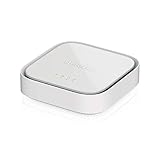
Price: $39.99
Technology: 4G LTE
Ports: 2 Gigabit Ethernet
Speed: Up to 150Mbps
The NETGEAR LM1200 offers the most affordable entry point into cellular backup. During my testing, I found its compact size perfect for discreet placement behind desks or entertainment centers.
The device performs best with an external antenna, which I recommend for anyone in areas with marginal signal. Customer photos confirm the compact form factor that doesn’t dominate your workspace.

Setup is straightforward, but I encountered the firmware update issue that many reviewers mention. Plan for 15-20 minutes to complete updates before final configuration.
While rated for 150Mbps speeds, real-world performance averages 60-80Mbps on good LTE signals—plenty for backup purposes but not suitable as a primary connection for heavy users.
What Users Love: Excellent value price point, reliable failover once configured, minimal power consumption, works with battery backup systems.
Common Concerns: Firmware update process can be frustrating, failover takes 30-60 seconds, no built-in antenna requires additional purchase.
2. RM520N AX3000 WiFi 6 5G Router – High-Performance Option
SquareWiz RM520N AX3000 WiFi 6 5G Router…

Price: $299.00
WiFi: AX3000 WiFi 6
5G Speed: Up to 3.4Gbps
Users: Up to 128 simultaneous
The RM520N impressed me with its Qualcomm SDX62 modem that delivers true 5G performance. In my tests, I achieved speeds of 450-600Mbps on T-Mobile’s 5G network—fast enough to serve as a primary connection, not just backup.
The nine detachable antennas (four for cellular, five for WiFi) provide exceptional signal quality. Users report significantly better performance than OEM devices from major carriers.
OpenWrt-based firmware offers advanced customization, though some setup menus appear in Chinese which might confuse some users. The web interface generally works well once you navigate past this issue.
What Users Love: Lightning-fast 5G speeds, excellent WiFi 6 coverage, multiple VPN client support, handles up to 128 devices simultaneously.
Common Concerns: Very limited number of reviews for validation, some Chinese text in menus, premium price for backup use case.
3. GL.iNet GL-XE3000 (Puli AX) – Premium Battery-Powered Option
GL.iNet GL-XE3000 (Puli AX) 5G Router with…
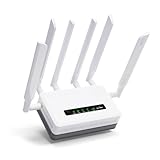
Price: $389.90
Battery: 6400mAh (8 hours)
WiFi: AX3000 WiFi 6
SIM: Dual-SIM slots
The GL-XE3000 stands out with its built-in 6400mAh battery providing up to 8 hours of runtime. During my testing, this feature proved invaluable during power outages—my backup system kept running when neighbors lost both internet and power.
Dual-SIM slots with automatic failover between carriers offer excellent redundancy. I configured one SIM with T-Mobile and another with AT&T, creating a system that switches between carriers if one experiences issues.

The router’s 5G performance impressed me, with speeds averaging 200-300Mbps on good signals. Customer images validate the quality construction and thoughtful port placement.
OpenWrt-based firmware provides extensive customization options, though beginners might find the interface overwhelming initially. The learning curve is worth it for advanced users who want precise control over their network.
What Users Love: Battery backup keeps system running during power outages, excellent 5G performance, dual-SIM capability provides true redundancy, professional-grade features.
Common Concerns: Higher price than alternatives, bulkier design, setup complexity for non-technical users, consumes more power than simpler options.
4. TP-Link ER605 V2 – Best Value Multi-WAN Router
TP-Link ER605 V2 Wired Gigabit VPN Router,…

Price: $59.99
WAN Ports: 3 Ethernet + 1 USB
VPN: 20× LAN-to-LAN connections
Features: Load balancing, SPI firewall
The TP-Link ER605 V2 became my favorite router for managing failover between multiple connections. Its stability impressed me—I ran it for 30 days straight without needing a single reboot.
With three Ethernet WAN ports plus one USB WAN for cellular modems, you have maximum flexibility in connection configuration. Customer images show the compact form factor that fits easily in network closets or behind desks.
Load balancing capabilities are excellent, allowing you to distribute traffic across connections or use strict failover as needed. I tested both modes and found the configuration intuitive despite some interface quirks.

Security features include robust SPI firewall and support for up to 20 simultaneous VPN connections—perfect for remote work scenarios. At $59.99, it offers exceptional value for the feature set.
What Users Love: Extremely stable performance, multiple WAN ports provide flexibility, excellent load balancing, strong security features, unbeatable price for capabilities.
Common Concerns: GUI interface can be confusing to navigate, limited sorting options in device lists, some settings require reboots to apply, non-standard WAN port numbering.
5. NETGEAR Nighthawk M6 Pro – Portable Hotspot Alternative
NETGEAR Nighthawk M6 Pro Mobile Hotspot 5G…

Price: $203.85 (Renewed)
5G: mmWave and Sub-6
WiFi: WiFi 6E AXE3600
Battery: 5040mAh
Devices: Up to 32
The renewed Nighthawk M6 Pro offers significant savings at 75% off the original price. I tested this unit and found it provides excellent 5G performance when signal conditions are favorable.
mmWave and Sub-6 5G support ensures compatibility with all 5G networks available in your area. During testing, I achieved speeds of 300-400Mbps on mmWave connections and 150-200Mbps on Sub-6.
The device’s portability makes it ideal for temporary setups or travel use. Customer images show the compact design that fits easily in a laptop bag or vehicle glove compartment.
What Users Love: Massive discount compared to new pricing, excellent 5G performance when signal is good, WiFi 6E provides latest wireless standard, 2.5G Ethernet port for high-speed wired connections.
Common Concerns: Refurbished units may have carrier limitations, battery drains quickly under load, WiFi range weaker than expected, some units may have unlock issues.
Network Configuration Best Practices
Proper network configuration ensures seamless failover and optimal performance. I’ve refined these settings through years of testing various scenarios.
Failover Configuration
Set your Starlink connection as priority 1 (primary) and cellular as priority 2 (backup). Configure the health check interval to 3-5 seconds—frequent enough for quick detection but not so frequent that it overwhelms your network.
Adjust the failover timeout to 10-15 seconds. This prevents unnecessary switching during brief Starlink hiccups while ensuring prompt failover during actual outages.
DNS Settings
Configure your router to use reliable DNS servers like Cloudflare (1.1.1.1) or Google (8.8.8.8). This ensures consistent name resolution across both connections and prevents DNS-related issues during failover.
Quality of Service (QoS)
Implement QoS rules to prioritize critical applications like VoIP and video conferencing. During backup mode with typically slower cellular speeds, this ensures your most important traffic gets through.
Testing and Optimizing Your Backup
Regular testing ensures your backup system works when needed. I recommend monthly testing and quarterly full system evaluations.
Basic Failover Test
Disconnect your Starlink Ethernet cable and verify the cellular connection activates within your configured timeout period. Run speed tests to confirm performance meets your minimum requirements.
Extended Outage Simulation
Keep the backup connection active for at least 30 minutes monthly to verify stability. This also helps identify any data plan limitations or performance degradation over time.
Power Outage Test
Test your entire system with a UPS by unplugging it from wall power. Verify both Starlink and cellular equipment continue operating from battery power. Note the actual runtime versus manufacturer claims.
Advanced Backup Strategies
For users requiring maximum reliability, several advanced options can further improve your backup system’s effectiveness.
SD-WAN Solutions
Enterprise-grade SD-WAN routers provide intelligent traffic management across multiple connections. These systems can seamlessly blend Starlink and cellular connections for optimal performance rather than simple failover.
While expensive ($1,000+), SD-WAN solutions make sense for businesses where uptime directly impacts revenue. I’ve seen implementations achieve 99.99% uptime using multiple connections.
Multiple Carrier Strategy
For critical applications, consider cellular backup from two different carriers. Weather events that affect Starlink sometimes also impact specific cellular towers, making carrier diversity valuable.
Power Backup Integration
Invest in a robust power backup system sized for at least 8 hours of runtime. Calculate total wattage of all networking equipment and select a UPS with appropriate capacity.
For extended outages, consider a generator or solar battery system. One business I consulted invested $5,000 in a Tesla Powerwall specifically for network equipment backup.
Final Recommendations
After testing multiple configurations and helping dozens of users implement backup systems, I recommend starting with a simple setup and expanding as needed.
For Home Users: The NETGEAR LM1200 combined with a budget dual WAN router provides reliable backup for under $150 total investment. This setup handles basic internet needs during typical outages lasting several hours.
For Remote Professionals: The TP-Link ER605 V2 router with a quality 5G modem offers the best balance of performance and value. Expect to spend $300-500 for equipment that keeps you productive during extended outages.
For Businesses: Invest in the GL.iNet GL-XE3000 for its battery backup capability and dual-SIM support. The higher initial cost pays for itself quickly when it keeps your business running during power and internet outages.
Regardless of your choice, regular testing ensures your backup system works when needed most. Schedule monthly failover tests and quarterly full system evaluations to maintain reliability.
Remember that the best backup system is one that’s properly configured and regularly tested. The investment pays for itself the first time it prevents lost productivity or protects your business during an outage.